
Settings and data
Whalik has a single Settings screen. It’s opened via the menu in the top-right corner of the home screen → the “Settings” item. All the key options are gathered here — from the theme to account management and data transfer.
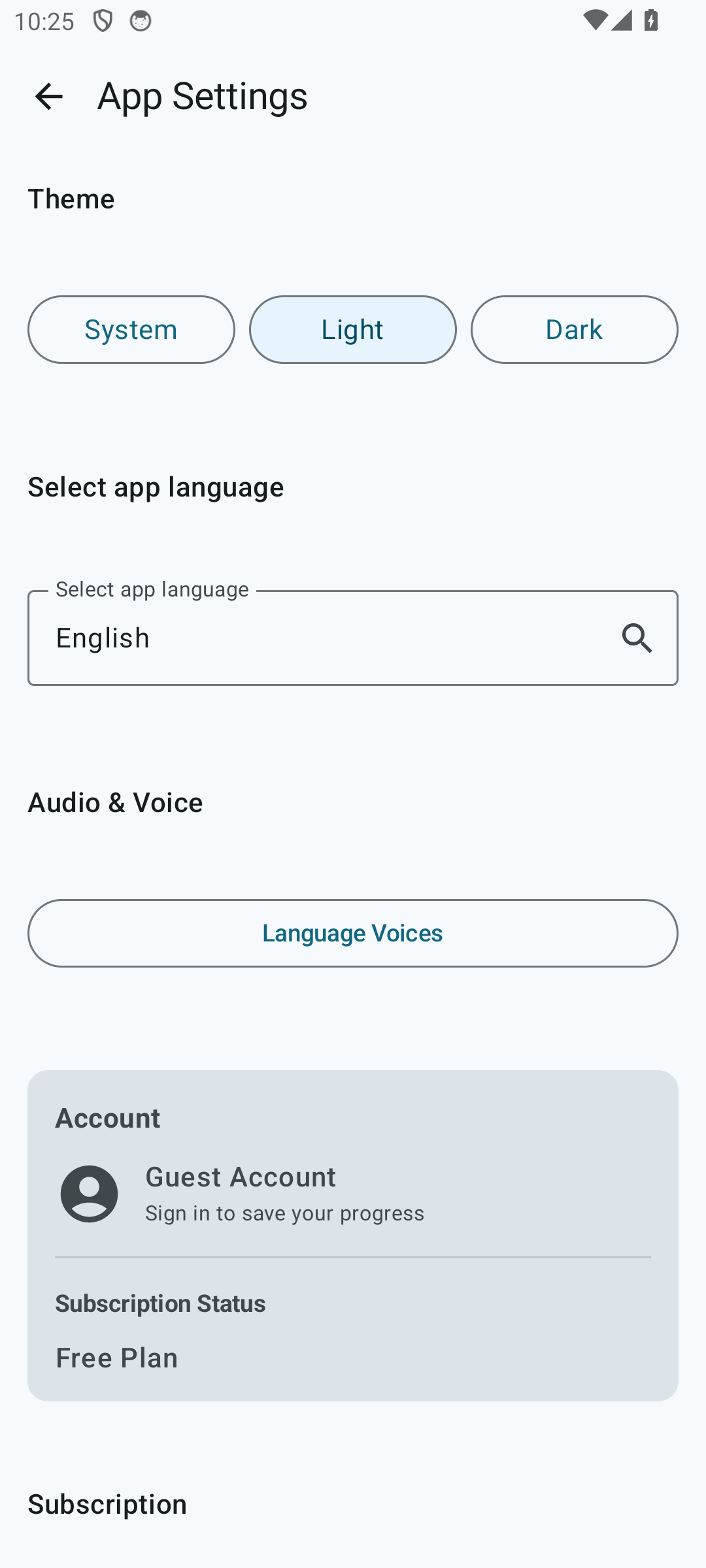
Theme
Whalik supports three theme options: light, dark and system (follow the device setting). Switching is instant and doesn’t affect your data.
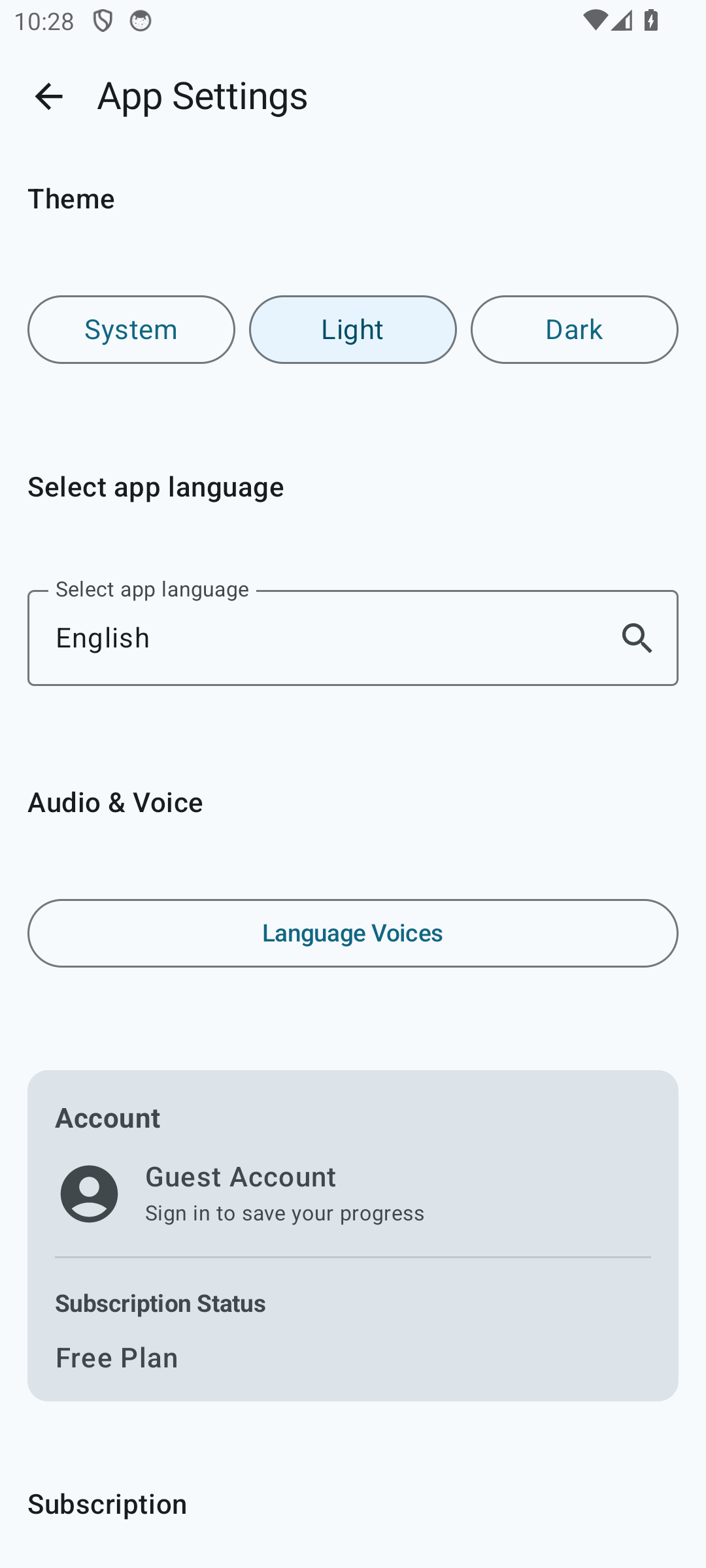
Interface language
Settings has a section for choosing the interface language of the app itself. It is not tied to the languages you learn: you can have a Russian interface and learn Spanish from English-language cards. The language change applies instantly — the app redraws without a restart.
Narration voices
By default Whalik itself picks the engine and voice for each learning language from those available on the device — that’s usually enough. If you want to change the chosen engine or voice manually, open the “Audio and voice” → “Language voices” section in settings. For more details, see “How to select or change the voice that reads the cards”.
Export and import
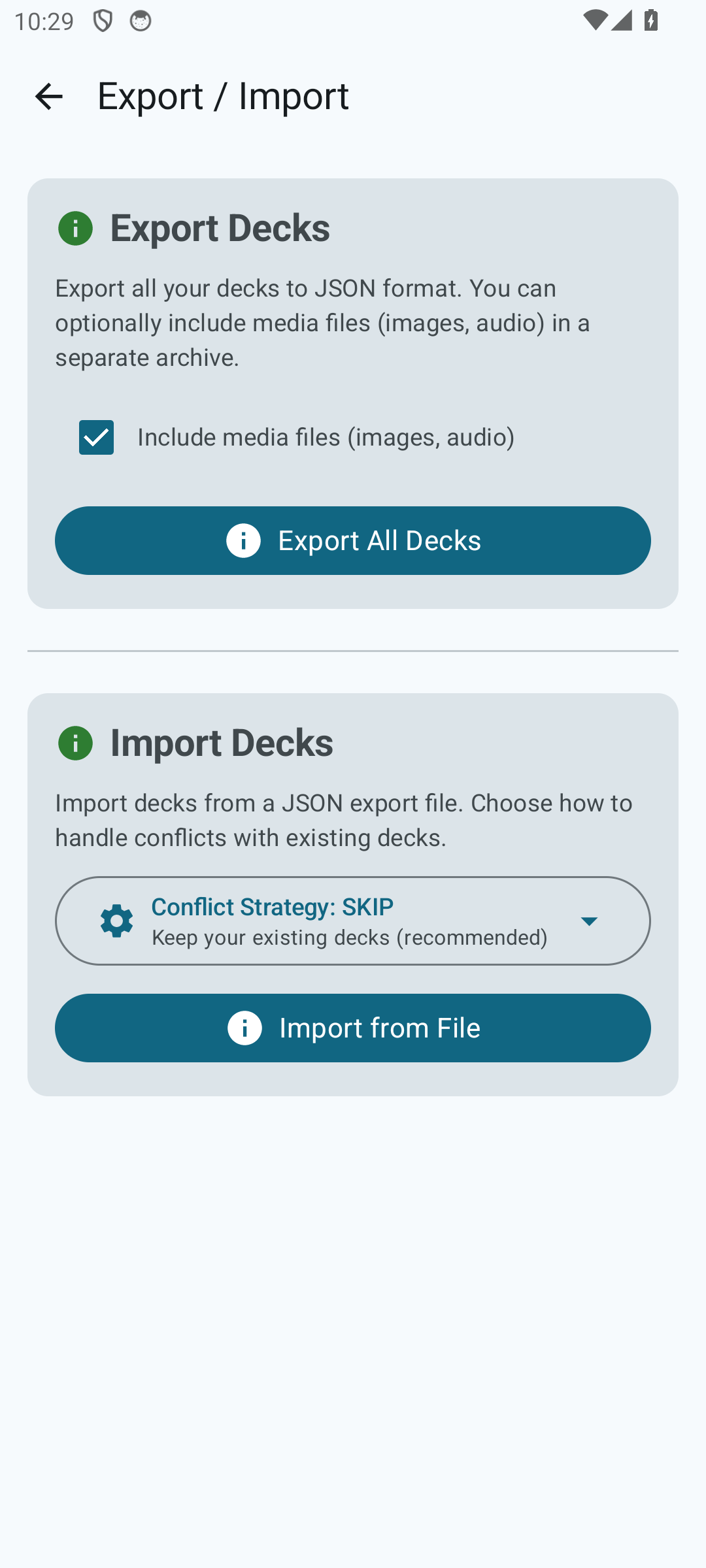
All your cards, folders and learning progress can be exported to a file. This is useful for:
- a backup copy;
- transferring data to another device;
- sharing decks with other Whalik users.
Export. In the
menu on the home screen, choose
“Export / Import”, then select which decks to
export. The file is generated in JSON format (with a name like
whalik_export_YYYY-MM-DD.json) and saved to the
location you pick via the standard Android dialog — for example,
to Downloads or Google Drive.
Import. On the same screen, pick an export file. Whalik will offer one of several strategies in case of conflicts with existing decks:
- Skip — if a deck with the same identifier already exists, leave it untouched.
- Merge — add the missing cards to the existing deck.
- Overwrite — completely replace the existing deck with the data from the file.
Account and user information
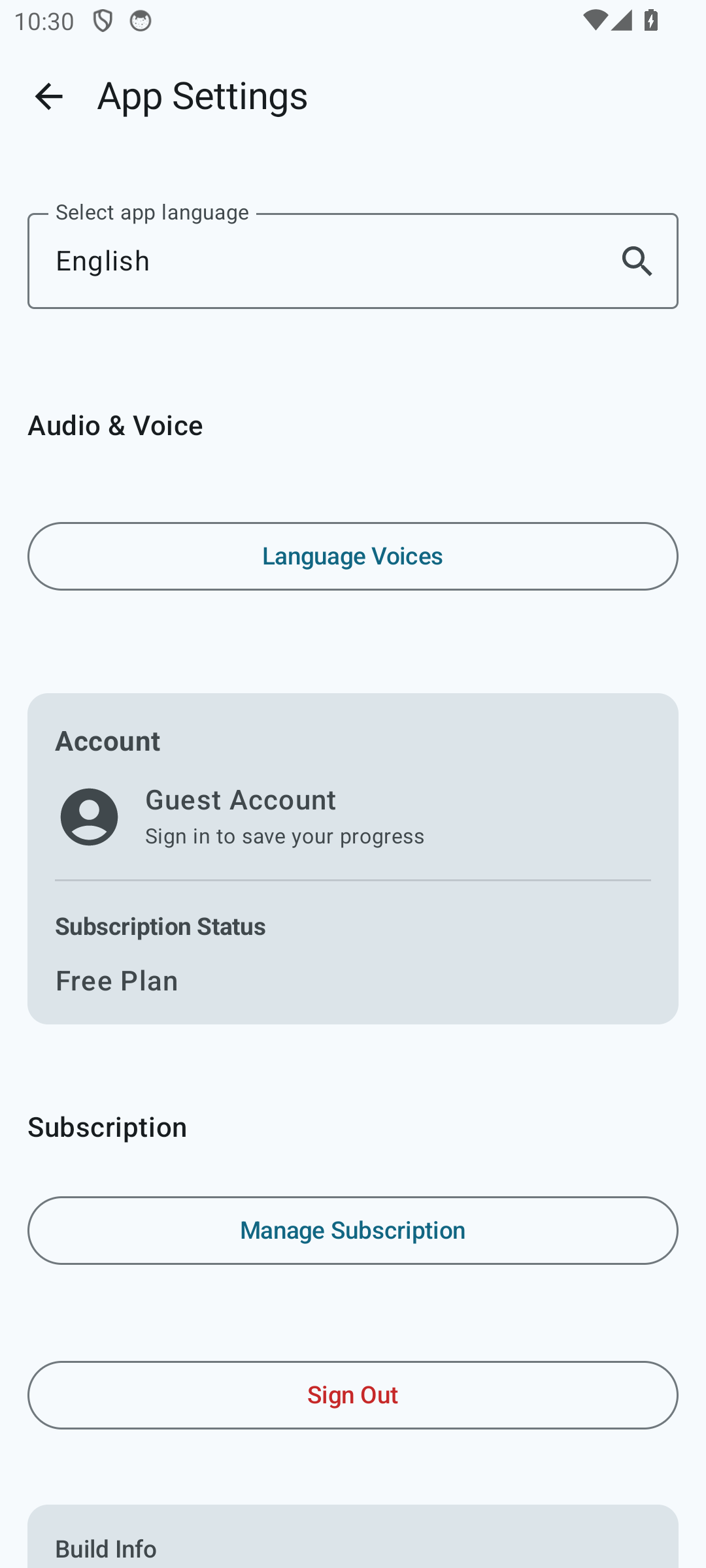
The account section shows the sign-in type (guest, email or Google), your address (if you signed in with email or Google) and your subscription status. You can also sign out from here.
Where my data is stored
Cards, folders and learning progress are stored on your device, in the app’s local database, and are never uploaded to Whalik’s servers. In the cloud, only your subscription status lives; AI card generation is also performed there, on your request. For details, see “Are cards stored in the cloud?”.
Tune Whalik to yourself
Install the app and adjust the theme, voices and interface language to match your habits.