
Data and account
How do I export or import cards? No. 22
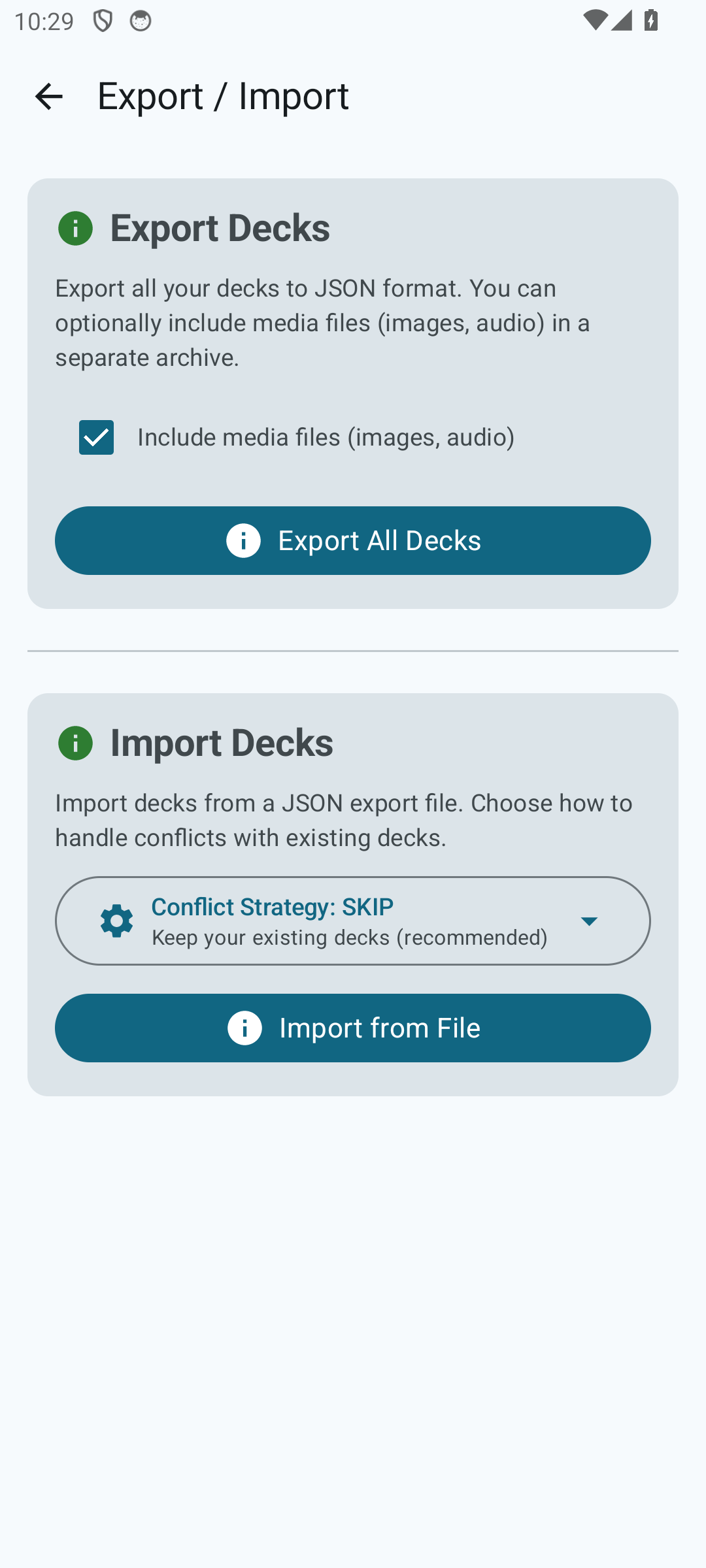
Export:
- On the home screen, open the menu in the top-right corner and choose “Export / Import”.
- Choose which decks or folders to export (you can pick “Everything”).
- Tap “Export”. The Android system dialog will open — pick a location to save to (Downloads, Google Drive, etc.).
Whalik will create a JSON file named like whalik_export_YYYY-MM-DD.json.
Import:
- On the same screen, tap “Import”.
- Choose a previously saved JSON file via the system dialog.
- If the app already has decks with the same identifiers, choose a strategy: Skip, Merge or Overwrite.
After import, the cards will appear in the deck list and keep the learning progress that was exported with them.
Are my cards stored in the cloud or on my device? No. 23
All your cards, folders and learning progress are stored only on your device, in the app’s local database. Whalik does not upload this content to its servers.
Only the following are handled on the servers:
- the fact that you are signed in and the link with your account (if you signed in via Google or email);
- the status and expiration date of your subscription (if you subscribed);
- processing your AI card generation requests.
Card content, translations, notes and learning statistics are not uploaded to the cloud. If you uninstall the app, the data disappears with it. To prevent this, use export.
How do I transfer my cards to another device? No. 24
- On the source device, open “Export / Import” and export all the decks you need to a JSON file (see how to export).
- Transfer the file to the new device in any convenient way: via cloud storage (Google Drive, OneDrive, Dropbox), a messenger, email, or a USB cable.
- On the new device, install Whalik, open “Export / Import” and import the transferred file. Choose the “Skip” strategy — it’s safe if the new device doesn’t have any decks yet.
Your learning progress is preserved along with the cards.
How does switching accounts affect my cards? No. 25
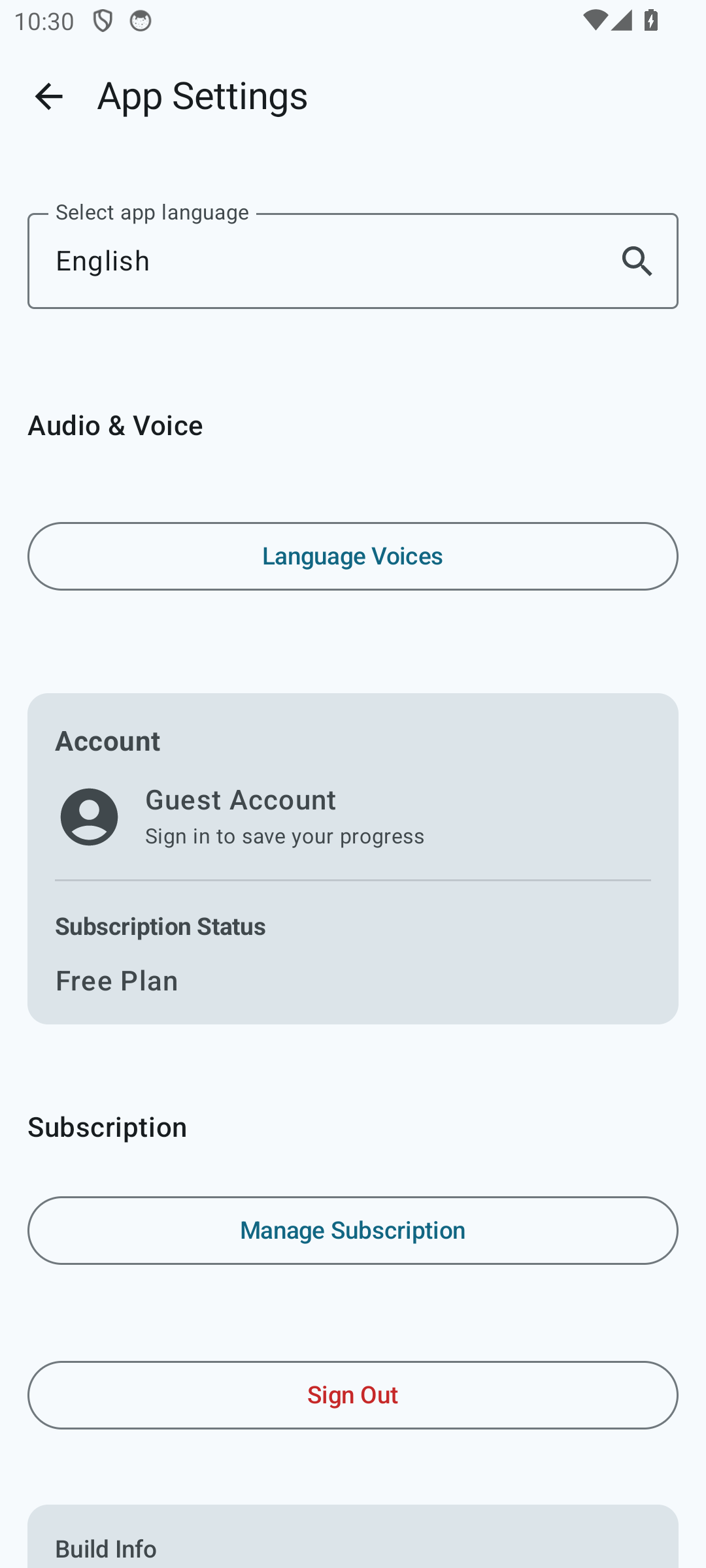
Since cards are stored locally and not tied to a server-side account, switching accounts behaves cautiously:
- Signing out (the “Sign out” button in Settings) does not delete your cards. The app returns to “guest” mode, but the cards stay in place.
- Signing in with a different account does not transfer the previous account’s cards — they remain on the device, but the link to the subscription changes.
- Uninstalling the app or clearing its Android data deletes the local card database. This is irreversible unless you exported your cards beforehand.
Protect your progress
Export regularly — it only takes a few seconds.