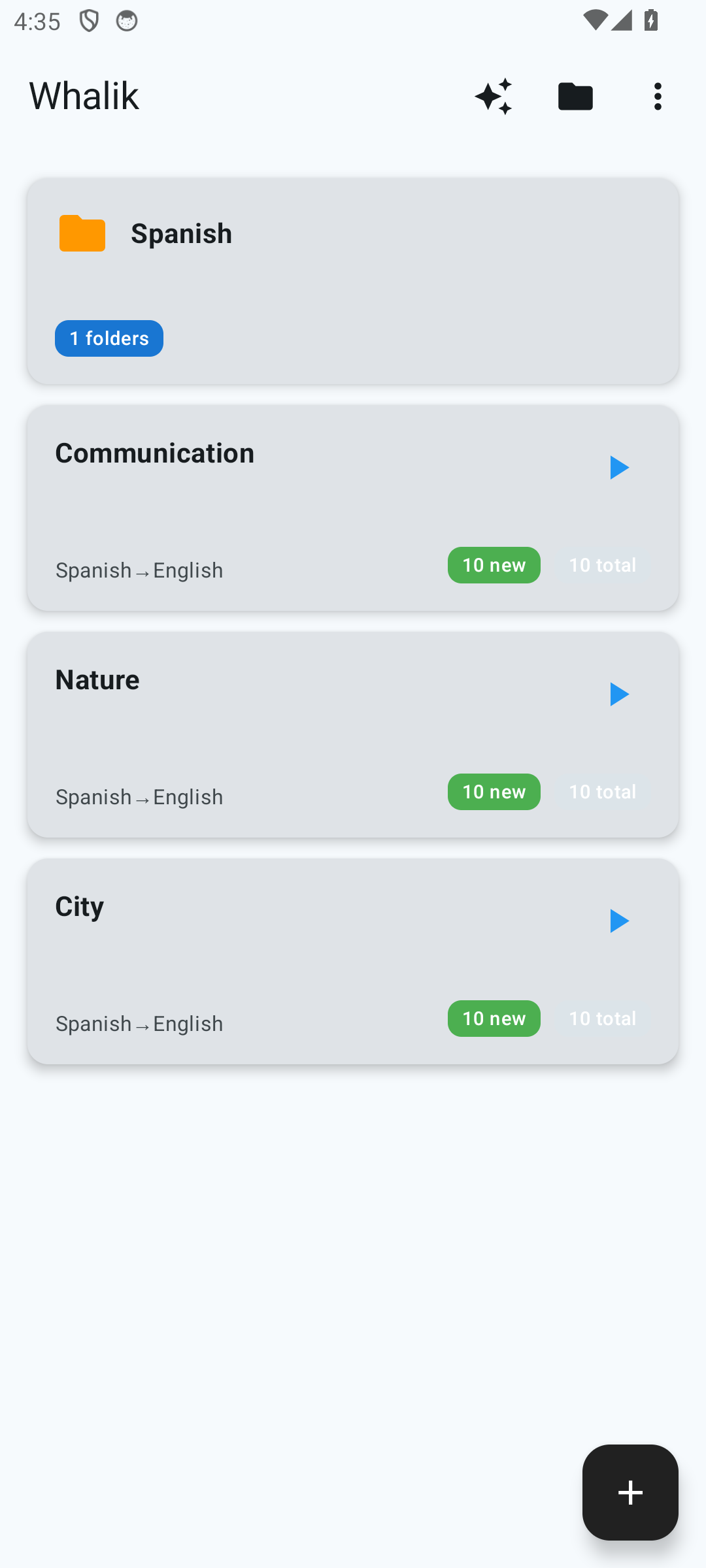
Over time, a lot of decks accumulate in the app. Whalik offers a
simple hierarchy: folder → deck → card. Let's go
over how it's organized and what operations are available.
Individual words or phrases. Each card has four fields: the word in the learning language, the translation, an example sentence, and a note with explanations.
What a card contains
Every card has two sides:
Front side — the word or phrase in the
learning language. This is what you try to recall in
study mode.
Back side — revealed when you flip the card. It
has three fields:
Translation — the word or phrase in your
native language.
Example — a sentence with this word or phrase
showing how it is used in real speech.
Notes — a short explanation of the word:
often a brief definition of the meaning, helping you grasp
the sense more precisely; grammatical details (gender of a
noun, verb type, conjugation); synonyms and words with
similar meaning; usage nuances (formal/informal style, set
expressions). What exactly ends up in the note depends on
the word — for one card the definition matters most, for
another the grammar does. With AI generation, notes are
filled in automatically.
Example (a card from the “City” deck, Spanish → English):
Front side:ciudad
Translation: city
Example:Vivo en una ciudad grande.
Notes: Feminine noun (la ciudad). Basic word for any city.
In study mode, only the front side is shown at first. After you
have tried to recall the translation and opened the back side, you
see all three fields at once — translation, example and notes.
Notes are especially useful when a word has nuances that aren't
obvious from the translation alone.
Why folders are useful
Folders group decks by language and course.
Typical ways to use folders:
Separate languages. A dedicated “English”
folder and a separate “Spanish” one — if you are learning
several languages in parallel.
Preserve a course's structure. If you are going
through an online course or a textbook, it's convenient to keep
a folder per level or chapter.
Separate serious decks from experiments. A
“Drafts” folder for trying out different topics, a “My main”
folder for the ones you actually study.
Creating and editing
On the home screen with the deck list, the top bar has a
“Create folder” button. Enter a name — and you're
done. To rename a folder, enter selection mode (long-press the
folder) and tap
“Edit”.
You can create a deck in three ways:
Create an empty deck. On the home screen, tap
the floating action button
in the bottom-right corner — the “Create deck” dialog will open,
where you set the name, description and languages. Cards are
added later, for example via the “Custom Words” dialog
(see “Custom Words”).
Via AI generation (the
button in the top bar) — when you want to get a ready-made deck
on a chosen topic right away.
Via import of a previously saved collection — see export and import.
Moving and copying
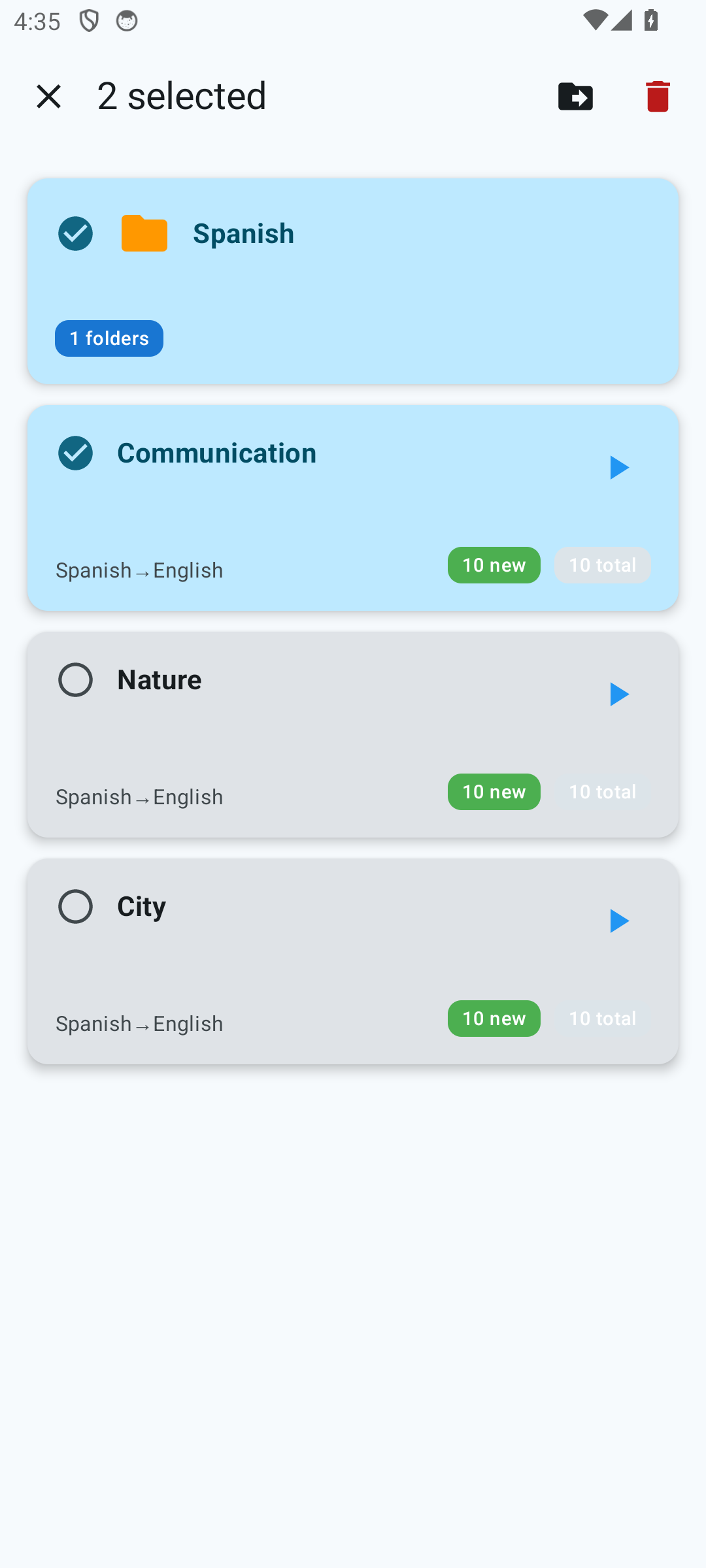
To move a deck to another folder, long-press it —
this turns on selection mode. The selected deck
will be marked with a check, and the top bar will show
bulk-action buttons: edit, move, delete. Short-tapping other
decks and folders adds them to the selection, so you can move
several at once. Folders can be moved the same
way: they nest inside each other without any issue.
Selection mode on the deck list: a folder and a deck are selected, with multi-item actions in the top bar.
To move or copy some of the cards from one deck
to another:
Open the deck that contains the cards you need.
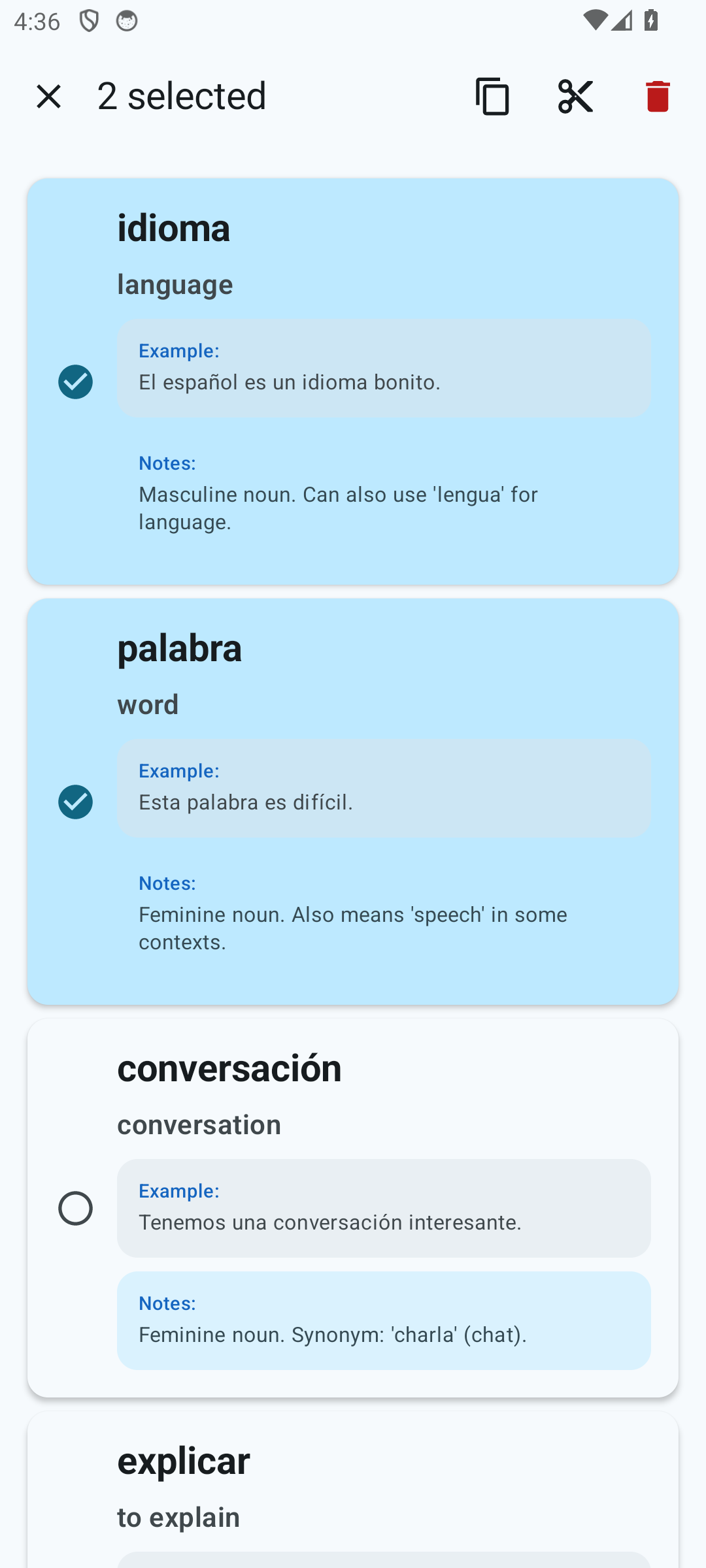
Long-press one of the cards — selection mode
will turn on. Mark all the ones you need with a short tap.
In the top bar, tap
“Copy” or
“Cut”. The cards will be placed on the
internal clipboard.
Open the destination deck and tap
“Paste”. The cards will be added to the existing ones.
Selection mode on cards: mark several at once and copy, cut, or delete them in a single action.
Deletion
Delete a deck: select it with a long press and
tap
“Delete”. The app will ask for confirmation, because the action
is irreversible.
Delete cards: open the deck, select the cards
you need with a long press, and tap
“Delete”.
Delete a folder: select the folder and tap
“Delete”. The app will warn you that all decks and cards inside
the folder will be deleted along with it.
Important.
Deletion happens only on this device. If you exported the deck
beforehand, you have a backup and can restore it via import.
Organize your decks
Download Whalik and create your first decks and folders around the topics that matter to you.
 Whalik