
Audio in Whalik
Whalik can read cards aloud. This helps not only with memorizing how a word is spelled, but also with building your pronunciation and getting used to how the language sounds. Here we’ll look at how audio works in the app and how to tune it to your liking.
Audio playback screen
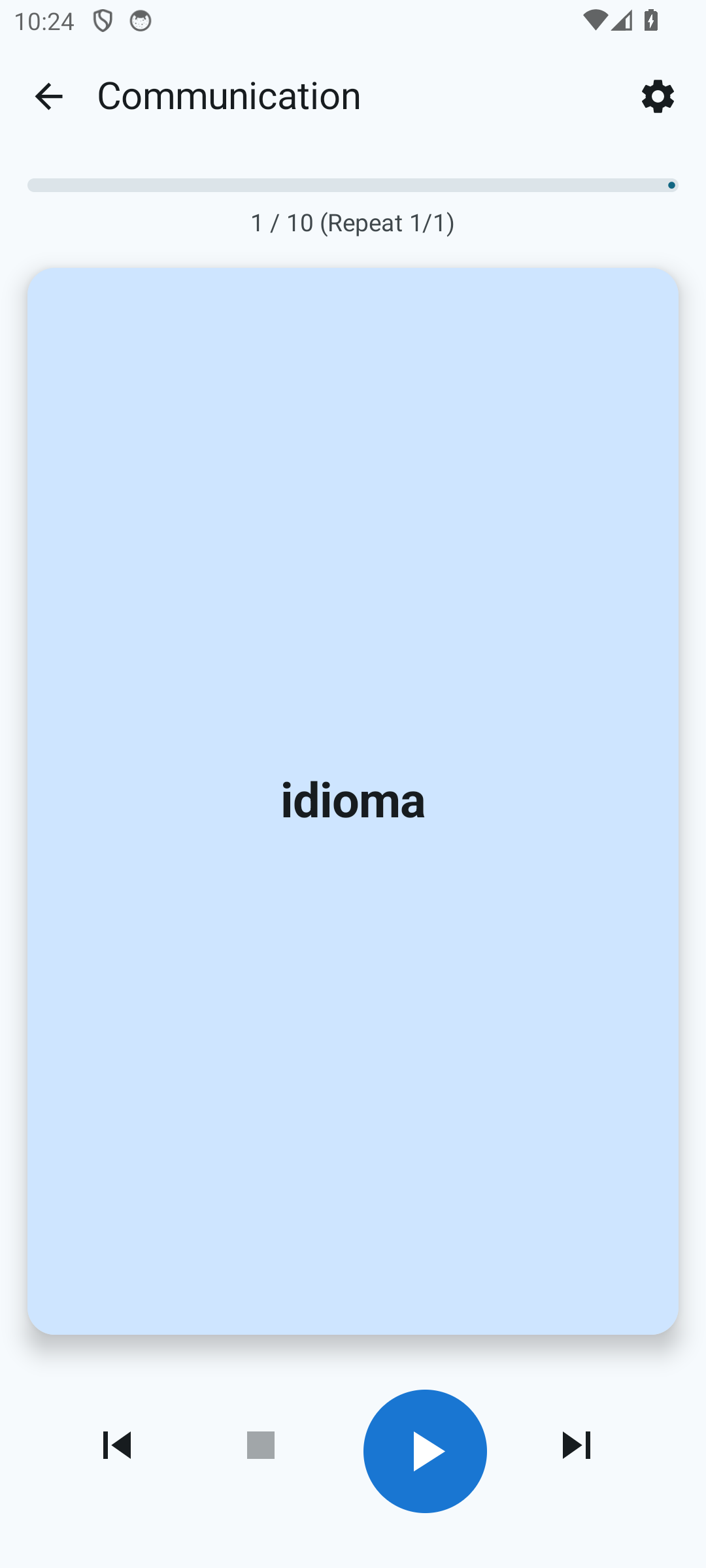
Every deck has a playback button. Tapping it takes you to the audio screen. By default, the app plays the front side (the word in the learning language), then the back side (the translation), and then moves on to the next card.
You can reverse the order of sides in the audio playback settings. This isn’t just a matter of taste: the two options have different goals. When the learning language is spoken first, you train recognition — you’re learning to understand what you hear. When the native language is spoken first, you train production — you’re learning to come up with the word yourself before hearing the correct one. The second mode is useful for anyone who wants to build up active vocabulary and speak more fluently.
Background playback
Audio keeps playing even if:
- you lock the screen;
- you switch to another app;
- you put the phone in your pocket.
At the same time, a mini-player appears in the notification shade, from which you can pause, resume or skip to the next card. The same standard media control commands are accepted from a Bluetooth headset — which gestures trigger them (single press, double, long press) depends on your specific model.
Playback settings
The audio screen has settings that change how playback proceeds:
- Order of card sides. By default, Whalik first reads the front side (in the learning language), then the back (in the native language). The “Start with the front” option inverts this order: translation first, then the word in the learning language.
- Shuffling cards in the session.
- Pauses between cards and between the two sides of a single card.
- Speech rate. From slow to fast — handy once you already know the cards well.
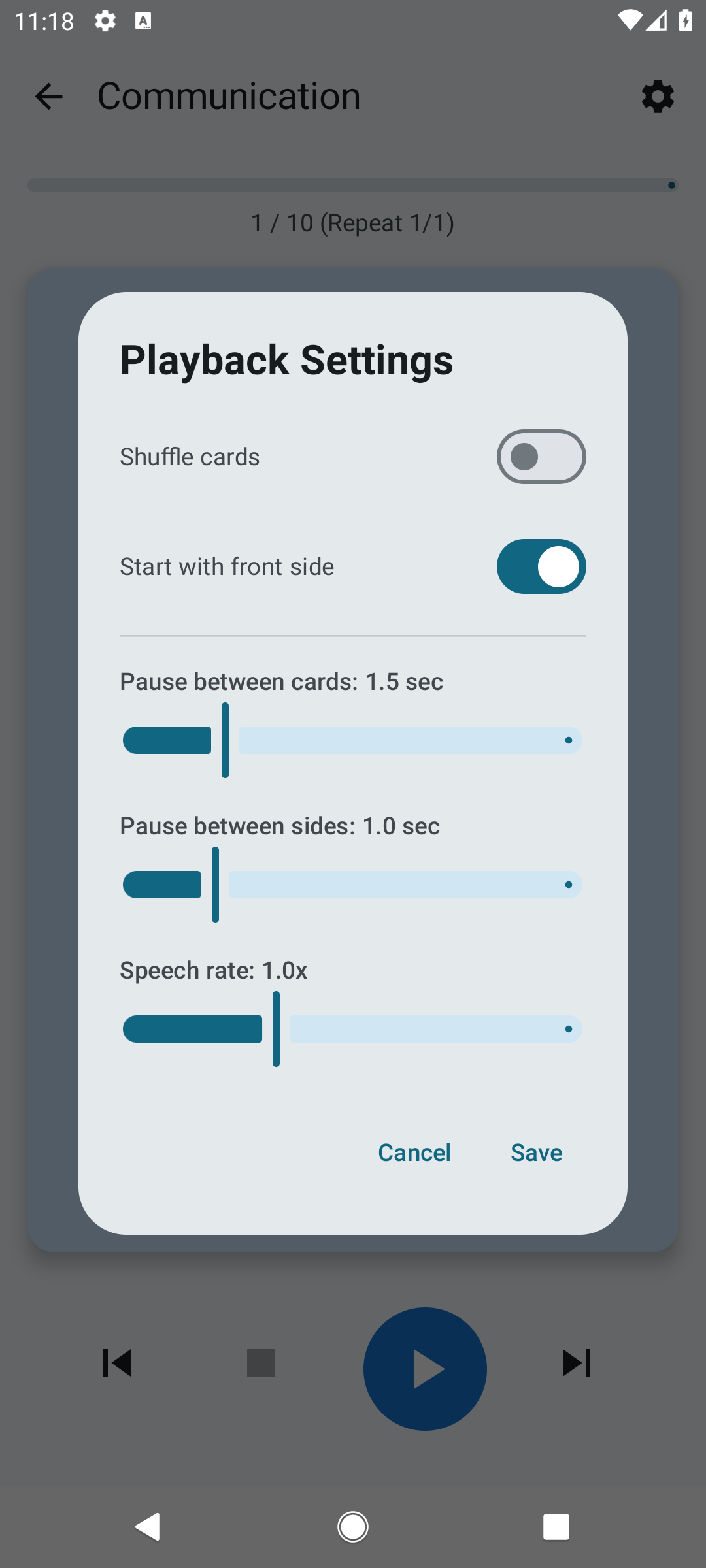
A deck plays on a loop: when the last card finishes, playback starts again from the first card and continues until you pause or stop the audio. This makes it easier to memorize new words and phrases — the more often they play in a row, the faster you start recognizing them by ear. You can just listen to the deck in the background for as long as it suits you.
Voice selection
Whalik uses your Android device’s system text-to-speech (TTS). By default the app picks the engine and voice for you for each learning language from those available on the device, preferring higher-quality options. In most cases you can just start audio right away without opening settings.
If the automatic choice doesn’t suit you (for example, the wrong voice was picked, or you want to change the engine), you can set the following in settings:
- Text-to-speech engine that supports the chosen language. Most devices come with Google Text-to-Speech preinstalled; if you’ve installed additional engines with support for the language you need (such as Samsung Text-to-Speech or RHVoice), they will also appear in the list.
- Specific voice for each language. How many voices are available, and which ones, depends on the engine and language: sometimes the choice is limited to a single voice, sometimes there are several options.
Settings can be configured separately for each language. For more details, see “How to choose a voice”.
Online and offline voices
Voices come in two types: online (require internet access) and offline (work without a connection). In the voice selection dialog, offline voices are marked with an “Offline” label; online voices have no such label.
Online voices can sometimes be of higher quality, but they have two downsides. Without the internet they simply won’t play — on a plane, for instance, or on the subway without a signal. And with some engines there’s a silent fallback: instead of the selected online voice, an equivalent offline voice is used, and you may hear a sound that’s not what you expected.
By default, when quality is comparable, Whalik prefers offline voices — so learning works reliably in any network environment. If you’re willing to accept the limitations of online voices for higher quality, you can manually select any available online voice in settings.
What to do if there’s no voice for the language you need
Narration isn’t available for all languages on every device: this is determined by the set of text-to-speech engines installed in the Android system and which languages they support. If none of the installed engines is suitable for the selected language, Whalik will notify you with a dialog and offer either to continue playback in silent mode or to go to voice settings. In settings you can pick a different installed engine (if it supports the language you need) or go to the Google Play Store to install a suitable engine.
Hear how the cards sound
Install Whalik and start the audio — check the voice quality for your language.