Structure your collection
Create folders and organize your decks by topic: language, course, level.
 Whalik
This page walks you through the path from installing the app to completing your first practice session. Estimated time: 5–7 minutes.
Open the Google Play Store on your Android device and install Whalik. The minimum Android version is 7.0.
On first launch, you'll see the sign-in screen. You have two options:
On the home screen, tap the AI generation button in the top bar. The generation dialog will open. Fill in:
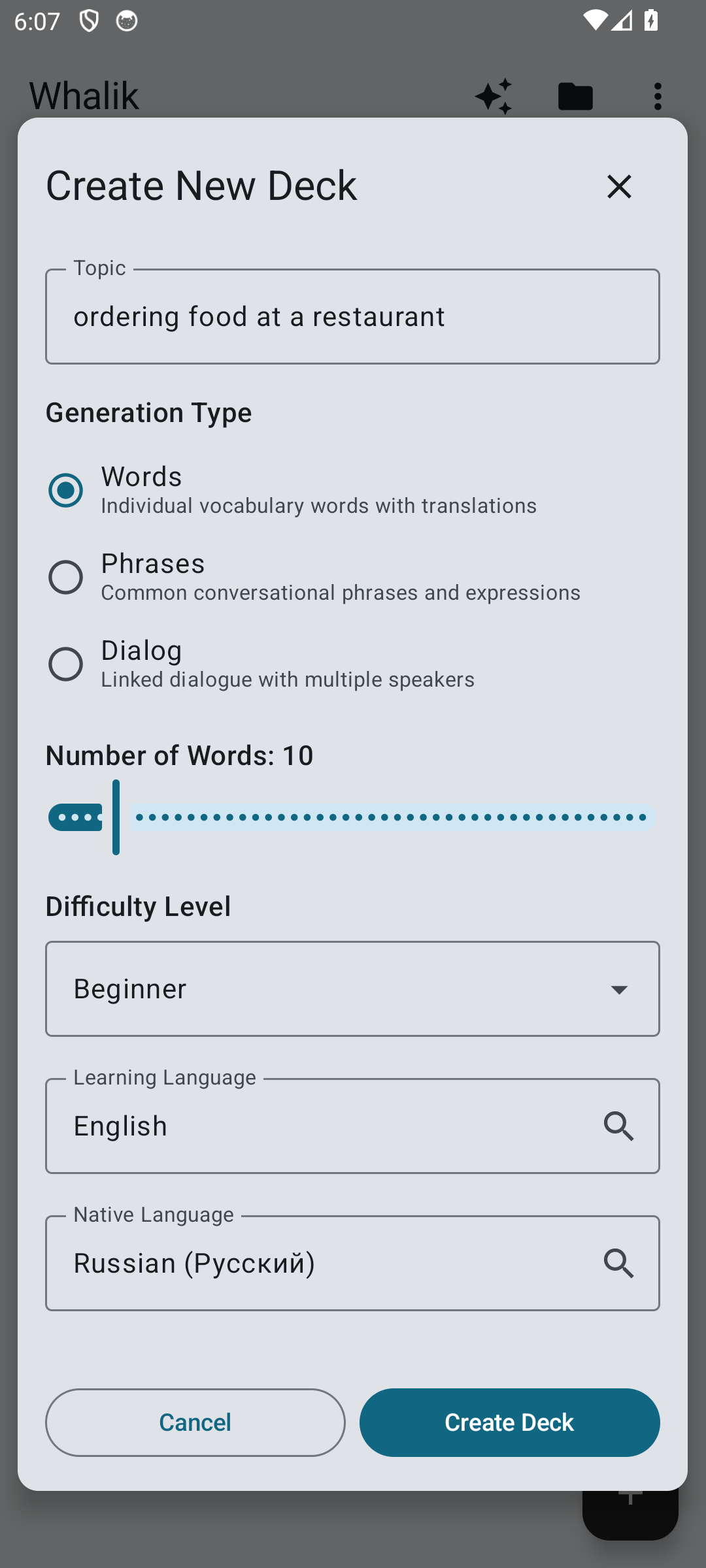
Tap "Generate" — the app will contact AI and assemble a new deck for you. If you need to create cards from your own list of words or phrases, that's done via the "Custom Words" dialog (see the generation page).
Open the deck you just created. On the deck detail screen, the cards appear as a list: for each one you can immediately see the word in the learning language, the translation, an example and a note with a short definition of the meaning, grammatical details, synonyms and usage nuances. This is a handy way to quickly scan what's in the deck — it's not a practice session yet, just a preview. For more details about card fields, see "What a card contains".
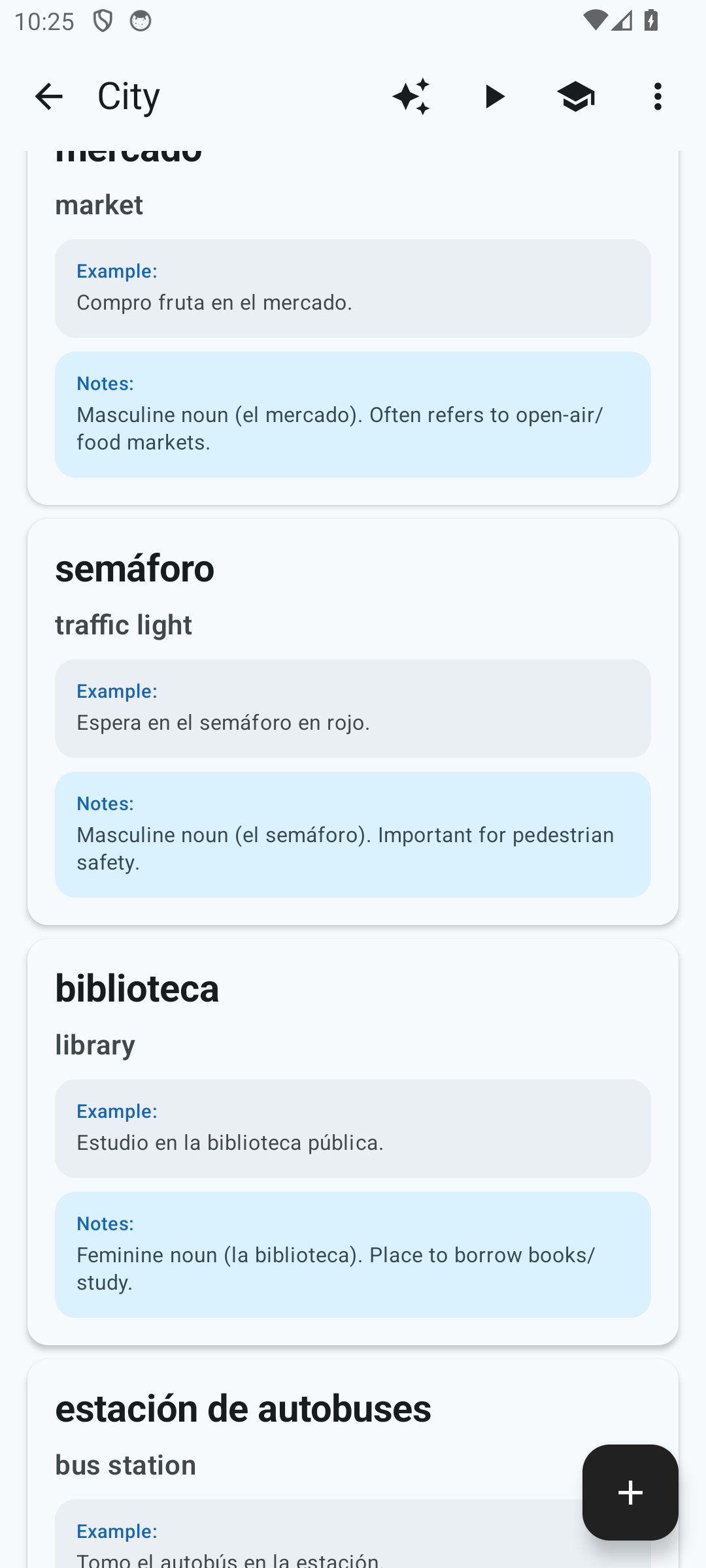
A short tap on any card in this list opens its preview mode — a separate screen where the card is shown enlarged, one at a time. At first, only the front side is visible:
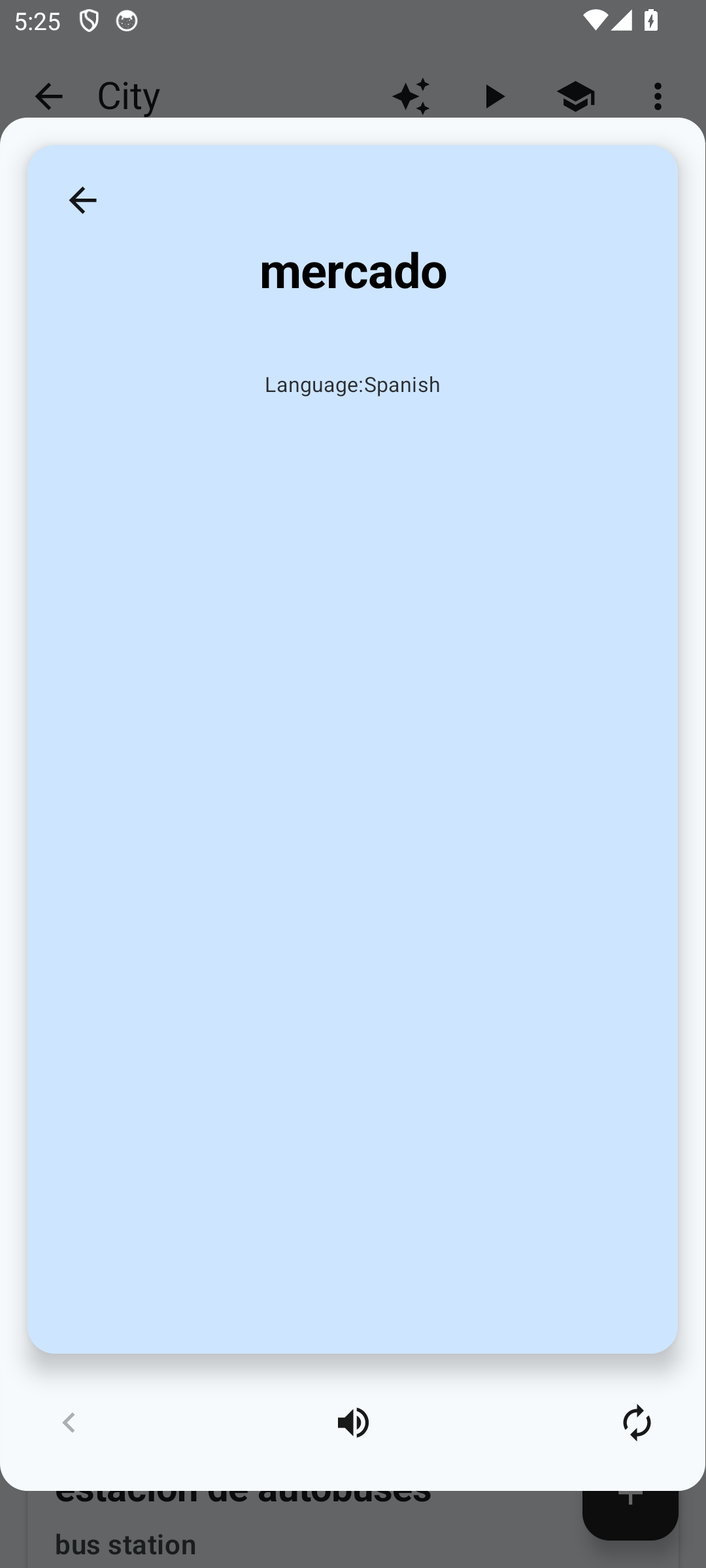
Tap the button at the bottom right (or the card itself) and it will flip — revealing the translation, an «Example:» line and a «Notes:» field:
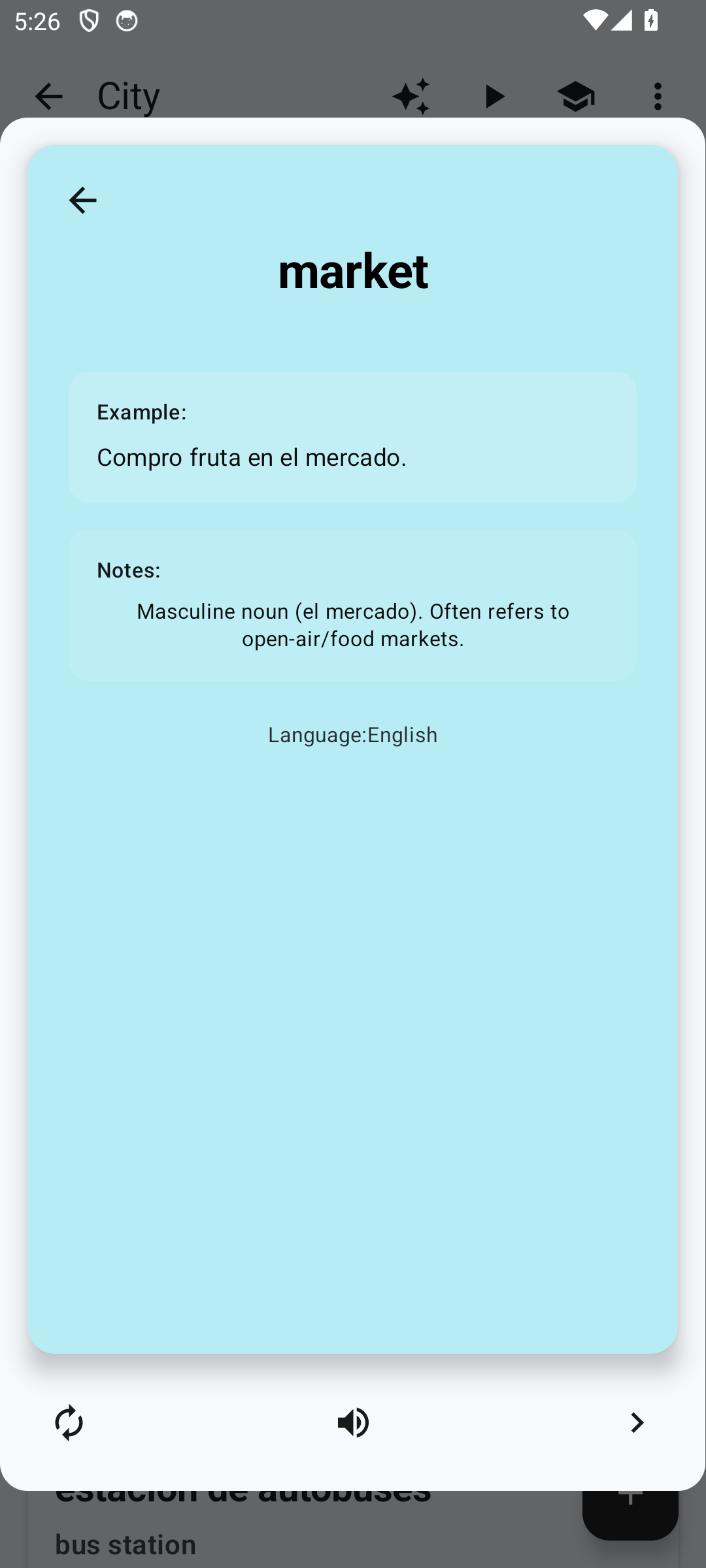
In this mode you can navigate between cards with the arrows at the edges of the bottom bar. The button in the center reads the current side aloud. To close preview mode, tap the arrow in the top-left corner or the system "Back" button.
The deck has a "Study" button. Tap it to enter study mode — the app first shows only the front side of the card so that you try to recall the translation.
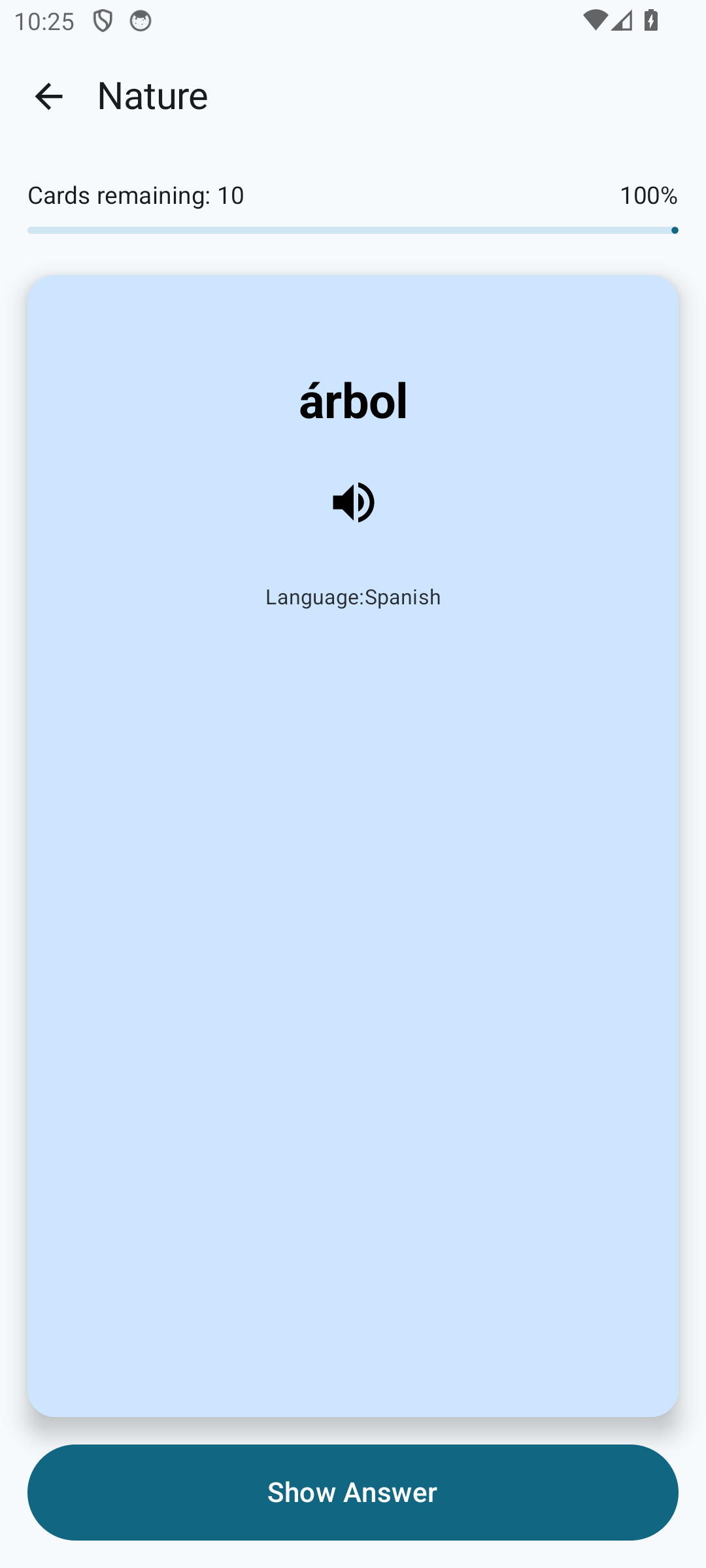
After you tap "Show Answer", the card flips: you see the translation, an «Example:» line and a «Notes:» field — and you rate how easily you recalled it with one of four buttons:
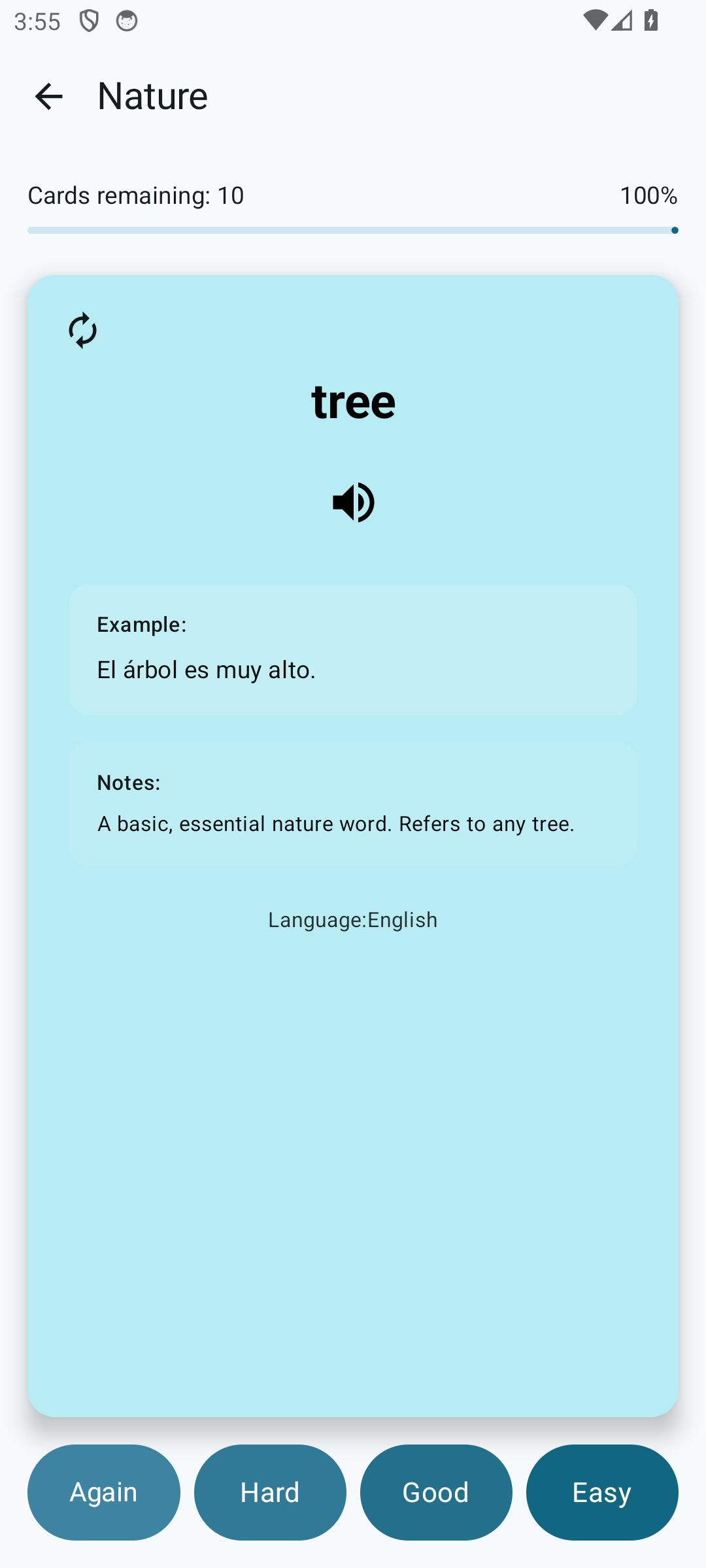
Based on your answers, Whalik calculates when it's best to show the card next. This works through the spaced repetition algorithm — for details, see "How to study effectively".
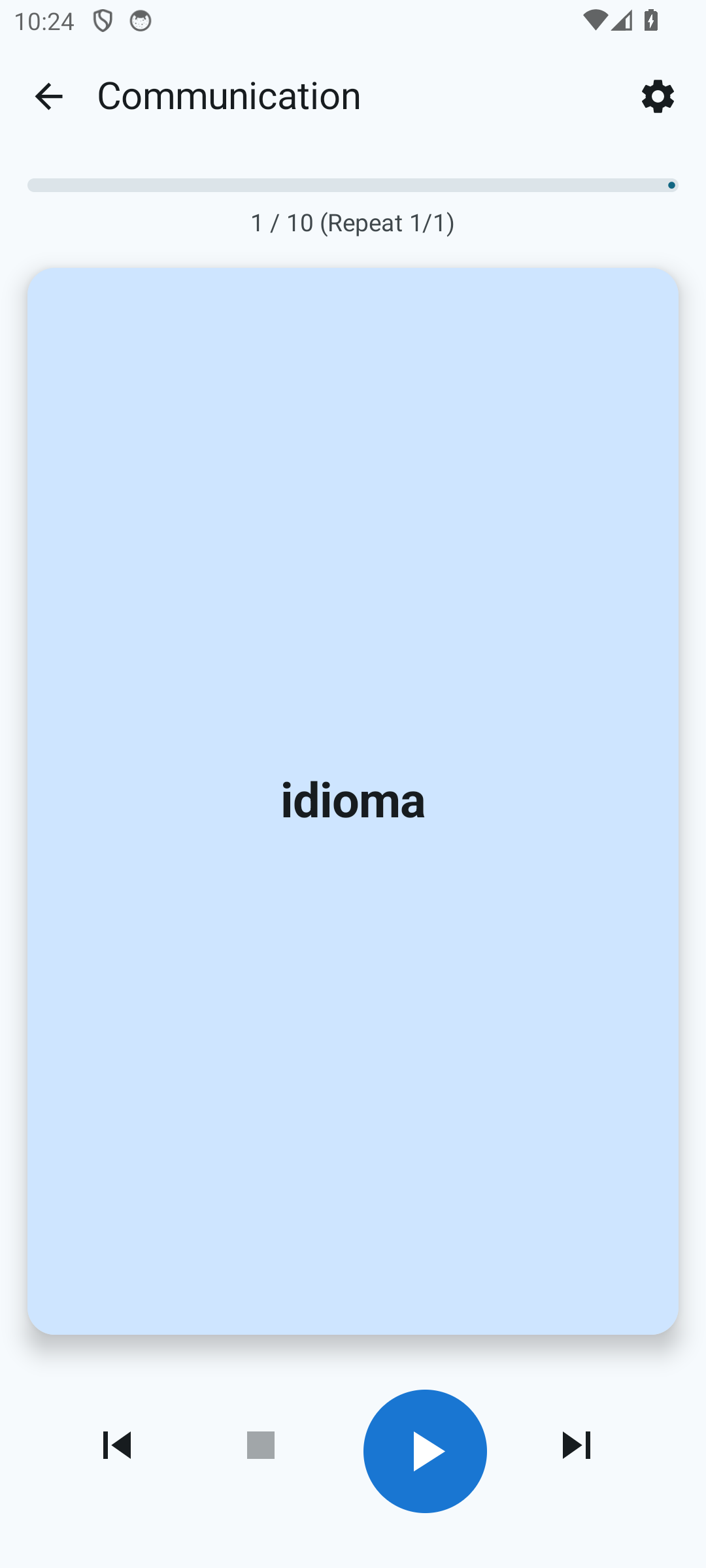
Next to the "Study" button, there's a playback button. In this mode, the app reads the cards aloud — handy for passive learning on the go or during a run. You can lock the screen, and the audio will keep playing. For details, see the "Audio" section.
Create folders and organize your decks by topic: language, course, level.
Change the theme, interface language or the voice that reads the cards.
Phrases, dialogues, generation from specific words — there are four generation types.
Download Whalik and start learning languages today.