
Generating cards with AI
Whalik’s core value is the ability to get a ready-made deck on any topic that interests you — without typing anything by hand. Just describe the topic and set the parameters; after that, the app contacts AI and returns cards with translations and examples.
Two different generation dialogs
The app has two different dialogs for creating cards with AI. They are opened from different places and serve different purposes:
- Topic-based generation — when you want a deck “about something” (for example, “food at a café”, “job interview”) and want AI to choose the specific words. Triggered by the button in the top bar.
- Generation from your own list of words or phrases — when you already have specific words or phrases in mind (for example, “cat, dog, cow”) and want AI to build cards from exactly those. Triggered by the floating action button inside an open deck.
1. Topic-based generation
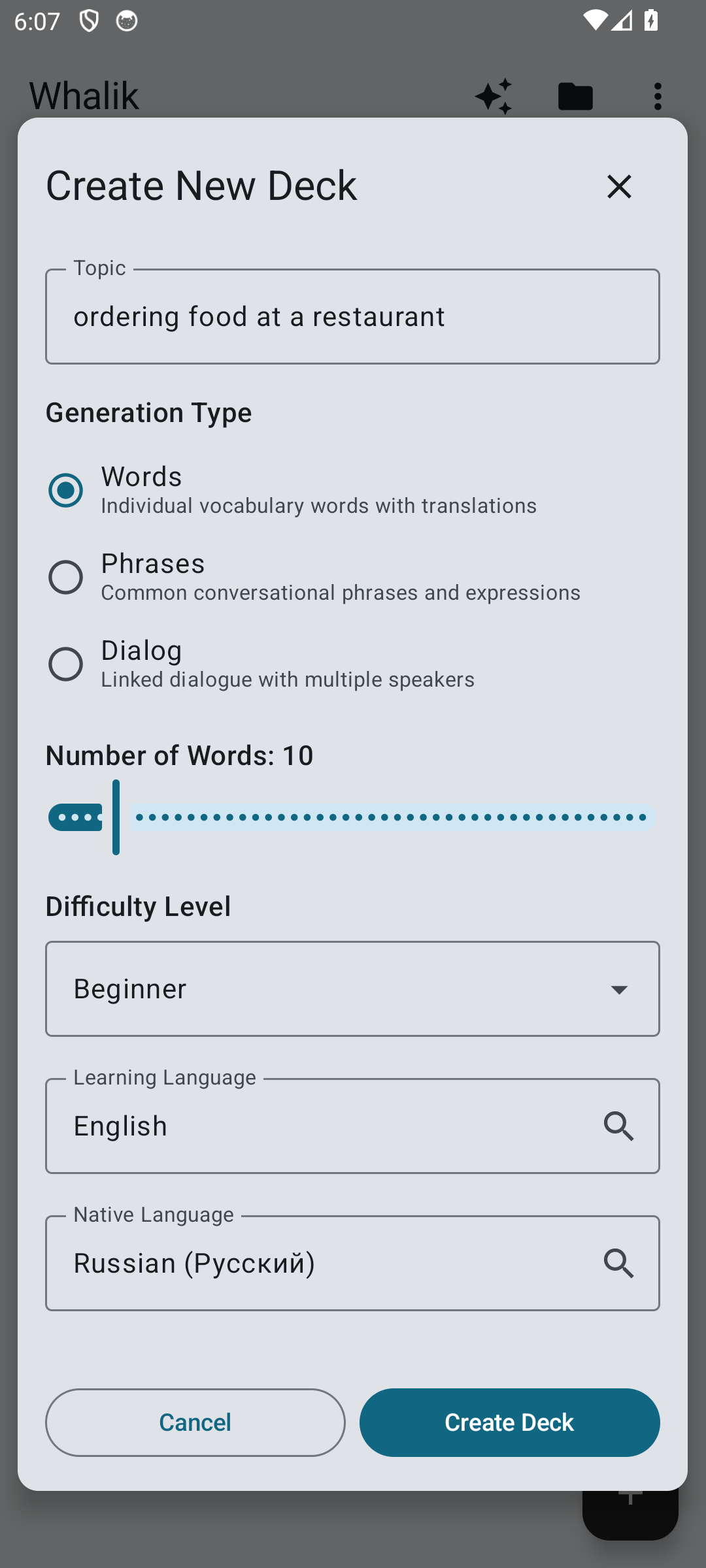
When to use it
When you want a deck about some topic, and AI decides which specific words go into it. For example: “breakfast at a café”, “interview for a developer position”, “buying tickets at the airport”.
How to open it
Tap the AI generation button in the top bar on the deck list or on the screen of an open deck.
Dialog parameters
- Learning language and native language.
-
Generation method — one of three:
- Words — a set of words on the topic. On the front — the word in the learning language; on the back — the translation, a usage example and notes (often a short definition of the meaning, plus grammatical details, synonyms, and usage nuances). For more details about card fields, see “What a card contains”.
- Phrases — a set of ready-made phrases useful in this situation (instead of individual words).
- Dialogue — a short scene between two speakers. The cards follow the order of the lines, and the speakers’ names are preserved.
- Topic — a short text request. The more specific, the more focused the result: “ordering food at a restaurant” is better than just “food”.
- Number of cards.
- Difficulty level — from beginner to expert. Affects vocabulary selection and example complexity. If you’re unsure, start with intermediate.
Where the cards end up
If you opened the dialog from the deck list, a new deck is created. If you opened it inside an existing deck, the cards are added to it, and AI receives the list of words already there so it can try to avoid duplicates.
2. Generation from your own list of words or phrases (“Custom Words”)
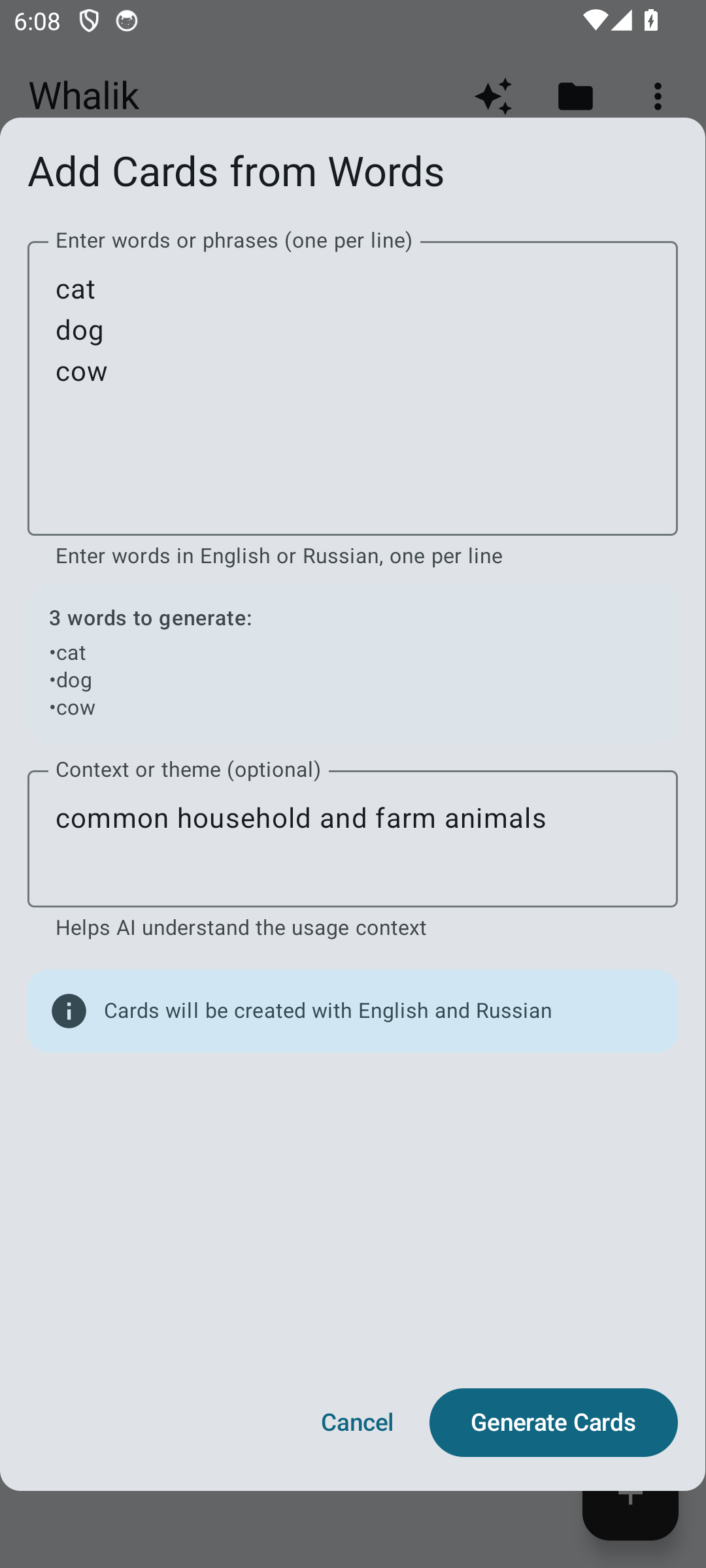
When to use it
When you want to create cards for specific words or phrases you’ve already chosen yourself. For example: “cat, dog, cow” or any other list of words you need to work through.
How to open it
The “Custom Words” dialog works only inside an existing deck: cards are added to that deck, and the languages are taken from its settings. The usual scenario is to set up an empty deck and add your own words to it.
- On the home screen, tap the floating action button in the bottom-right corner — the “Create deck” dialog will open. Enter a deck name (for example, “Textbook vocabulary, lesson 3”), optionally a description, and choose a pair of languages — learning and native. Tap “Create”.
- Open the newly created (still empty) deck and tap the floating action button in the bottom-right corner again — this will now open the “Custom Words” dialog. Enter your list of words or phrases and confirm the generation.
Depending on where you are, the same floating action button either creates a new deck (on the deck list) or opens the “Custom Words” dialog (inside a deck).
You can also add custom words to an existing deck — for example, one you previously generated on a chosen topic. In that case the first step is skipped: just open the deck you need and tap .
Dialog parameters
- List of words or phrases — entered line by line, one word or phrase per line. You can enter them in either the learning or the native language — the translation will be produced in the appropriate direction.
- Context (optional) — a short note about which specific meaning of these words to use. For example: “medical terminology” or “informal youth slang”.
The card languages are taken from the current deck — you don’t need to specify them separately in this dialog. For each word or phrase from your list, AI creates a card with a translation, a usage example and, if needed, a note.
How requests are counted
One request is one generation, regardless of how many cards it produces: generating 20 cards and 10 cards both count as a single request.
Try it yourself
Install Whalik and generate your first deck in a couple of minutes.