
Decks and folders
How do I delete a deck? No. 10
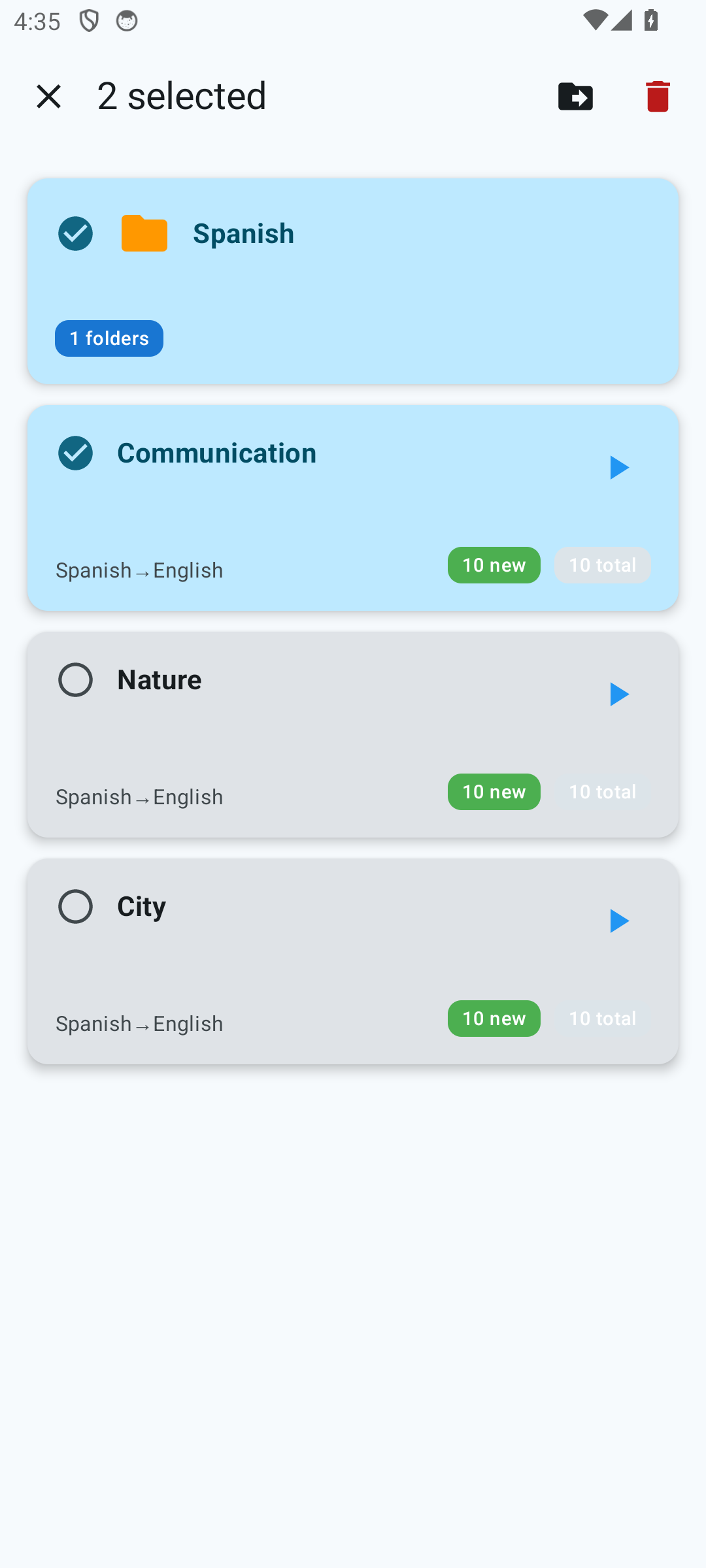
- On the home screen, long-press the deck you want until selection mode turns on.
- Mark more decks if needed — they can be deleted in a batch.
- In the top bar, tap the “Delete” button.
- Confirm the deletion in the dialog that appears.
What are folders for? No. 11
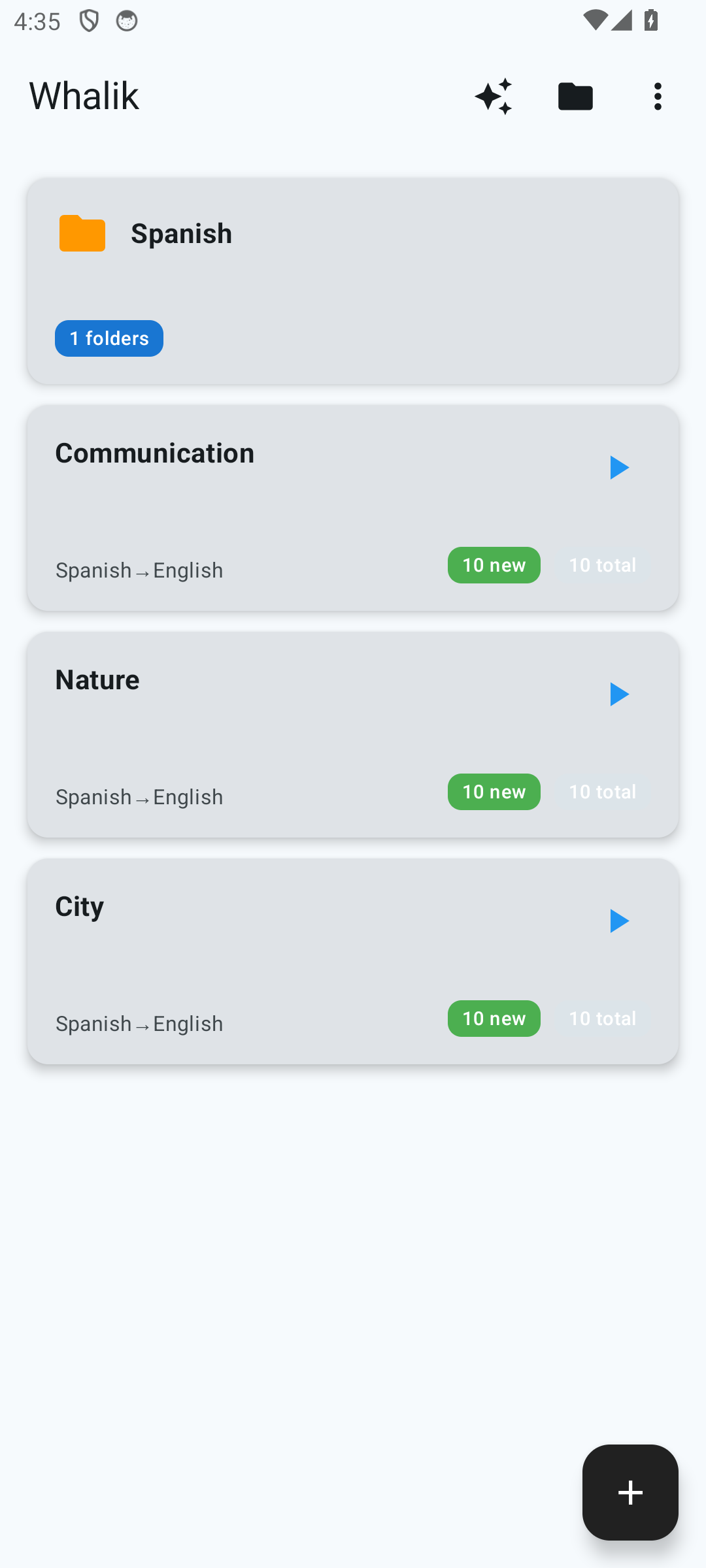
Folders group decks by any criterion that works for you: language (“English”, “Spanish”), course (“Duolingo lessons”), level (“B1 → B2”), material type (“Movies”, “Work”). A folder can be nested inside another — there is no limit on nesting depth.
To create a folder, tap in the top bar of the home screen, enter a name and confirm. For more details, see “Decks, folders, cards”.
How do I move a deck to another folder? No. 12
- Long-press the deck to enter selection mode.
- Tap the “Move” button in the top bar.
- In the dialog that opens, choose the destination folder — or “Root” to return the deck to the general list.
You can move several decks at once. Nothing in the cards’ data changes — only the deck’s “address” in the hierarchy.
How do I move a folder to another folder? No. 13
Exactly the same as with a deck. Long-press the folder, choose “Move” and pick a destination folder. All its contents — nested folders and decks — will move along with it.
How do I edit a deck’s name? No. 14
- Long-press the deck to enter selection mode. Make sure that only one deck is selected — otherwise the edit button will not appear.
- In the top bar, tap “Edit”.
- In the dialog that opens, change the name and optionally the deck description, then confirm.
How do I edit a folder’s name? No. 15
The same way: long-press the folder, tap “Edit” and change the name in the dialog that opens. Confirm — the folder’s contents are not affected.
Build your own structure
Folders, subfolders, decks — arrange your material however works best for you.