
Study modes
What's the best way to learn new words and phrases? No. 4
The best results come from combining Whalik's three modes:
- Get to know the deck in preview mode — browse through it to see all the cards and get a sense of the overall vocabulary.
- Turn on audio playback on the go or while doing other things — you'll hear the words and examples and get used to their sound.
- Run a practice session in study mode — that's how words lock into long-term memory through spaced repetition.
Study regularly in short sessions (10–15 minutes a day) rather than one long weekly session. The spaced repetition algorithm is built precisely around regularity.
For more details, see "How to study effectively".
What study modes does the app offer? No. 5
Whalik provides three modes for working with cards:
- Preview mode (deck preview) — free browsing without ratings.
- Audio playback — listening to cards read aloud.
- Study mode (memorization) — practice with rated answers and spaced repetition.
Audio and study mode are launched from buttons in the top bar of the deck screen; audio can also be started with the triangle button directly on the deck in the list. Preview mode is opened with a short tap on any card inside a deck — there is no separate button for it.
What is preview mode (deck preview)? No. 7
Open a deck — you'll see a list of its cards. A short tap on any card opens it in preview mode.
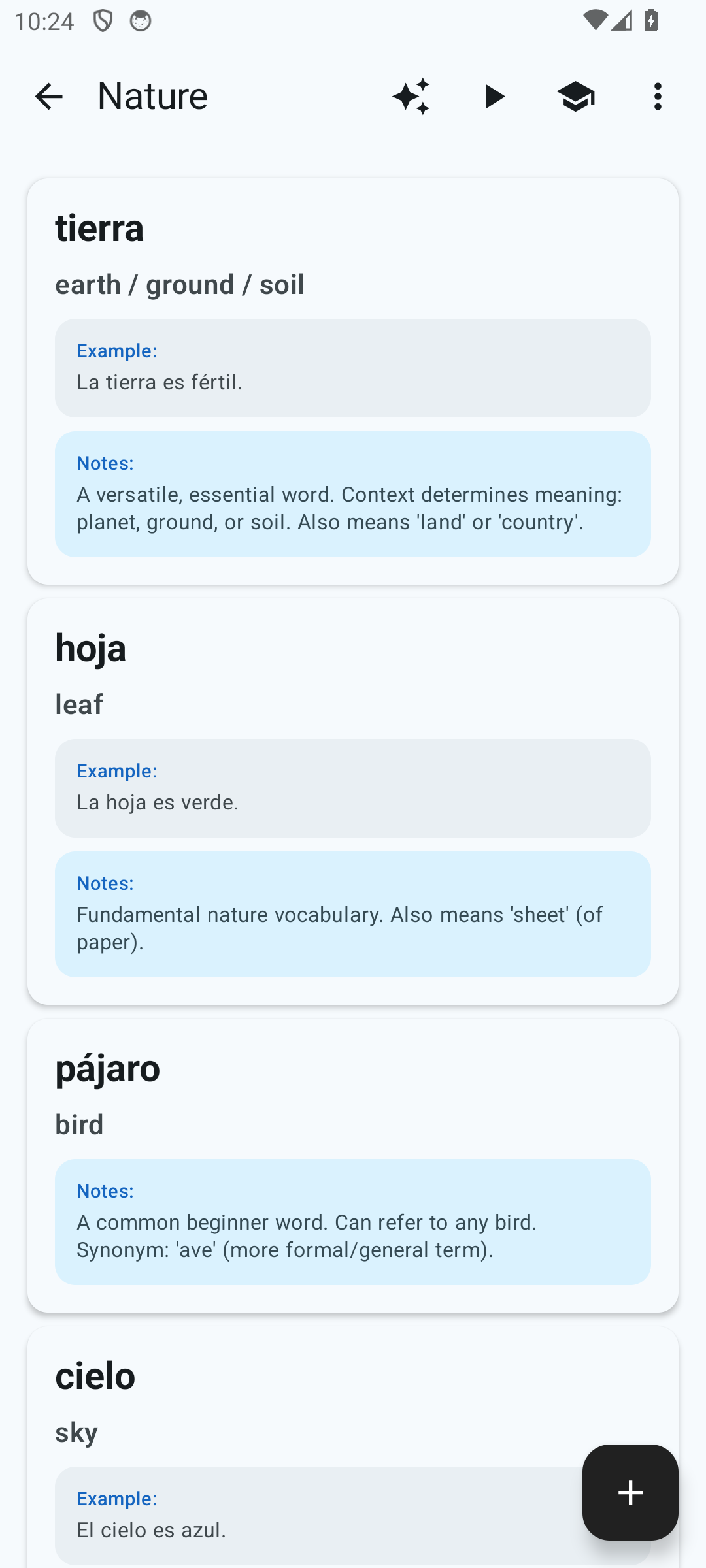
In this mode you see the card enlarged and can flip between its sides to check the translation, example and notes.
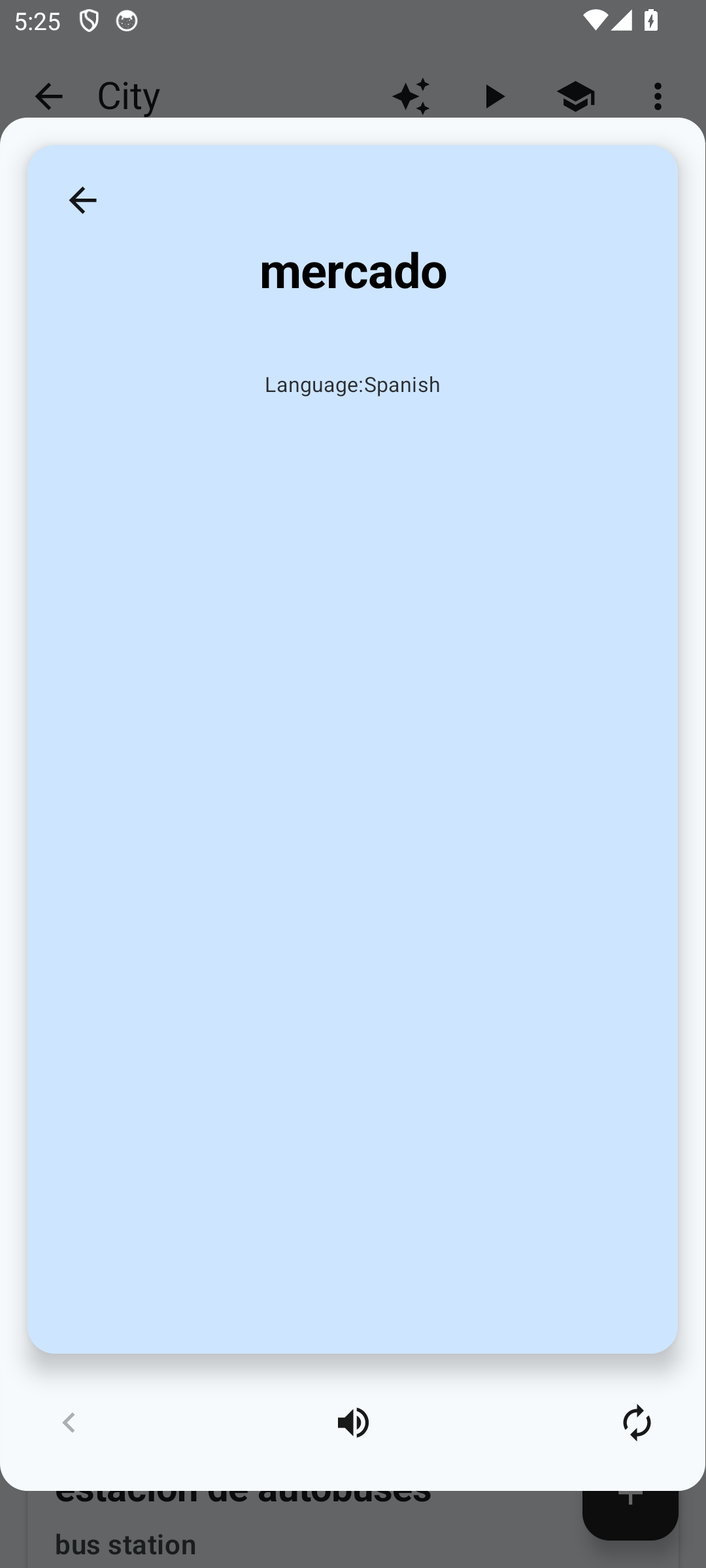
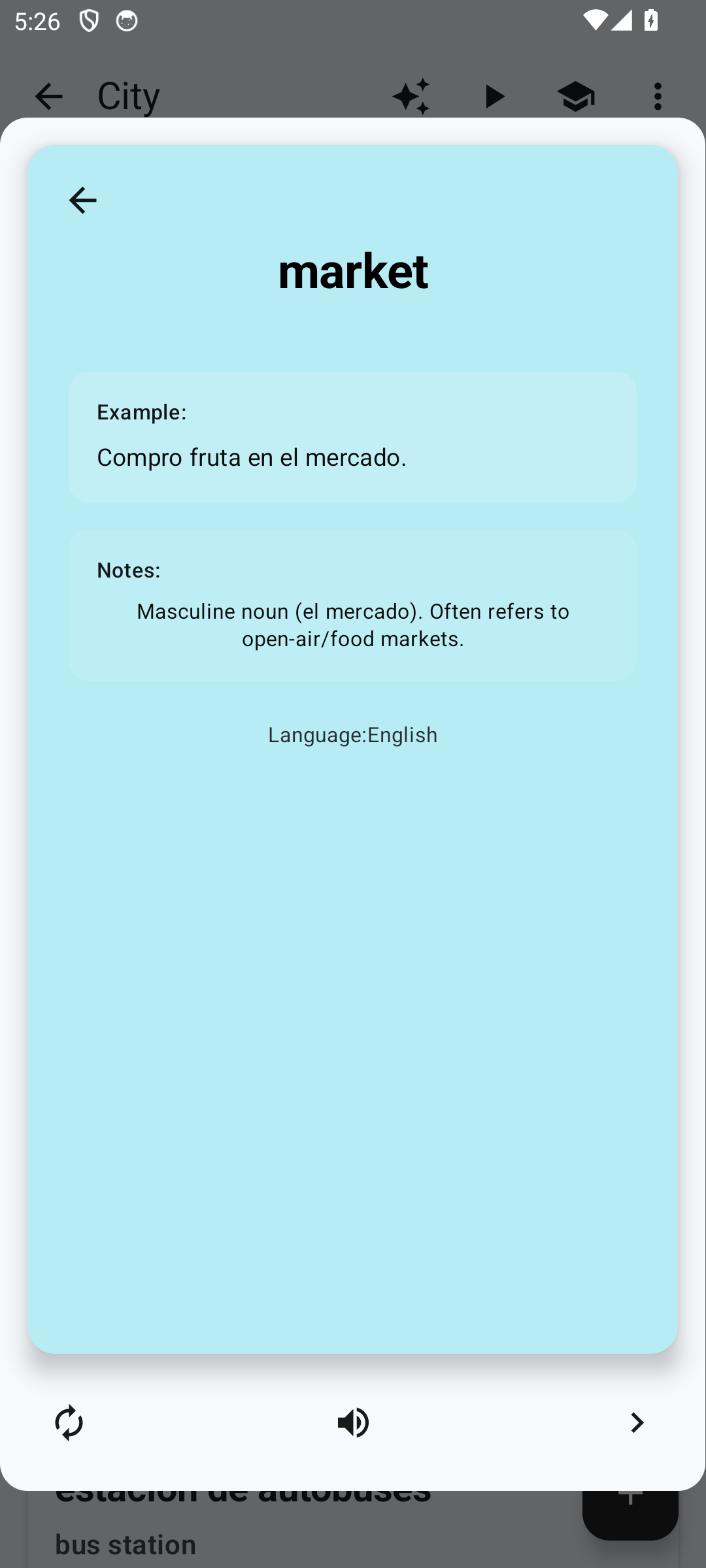
This mode does not change your learning progress and doesn't count as practice. It's meant for getting acquainted with the deck's contents and seeing what's in it before starting audio or the main practice session.
What is the audio playback mode for cards? No. 6
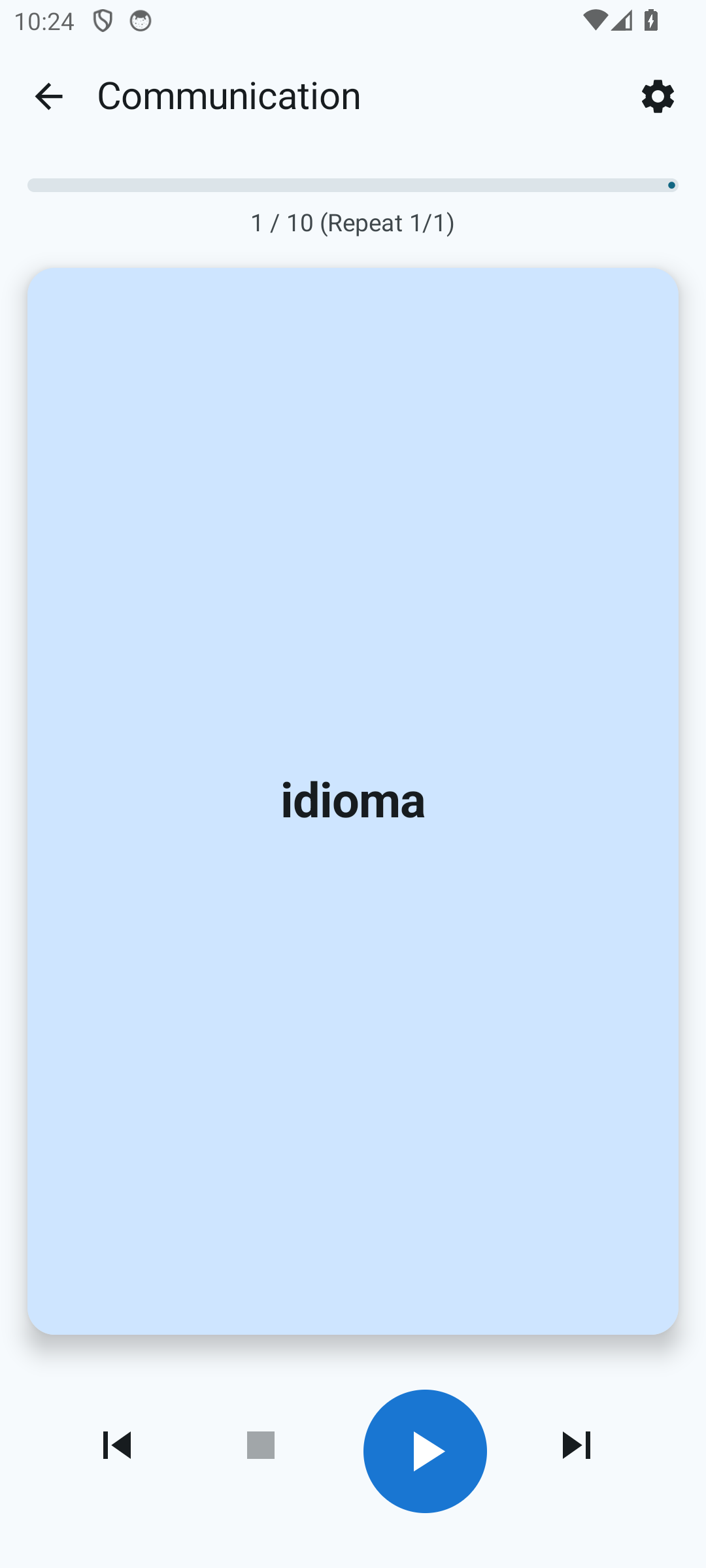
Whalik reads out the cards one by one: by default, first the front side (in the learning language), then the back (the translation in the native language). You can reverse this order in the audio playback settings. You can lock the screen or minimize the app — the sound will keep playing. A mini-player appears in the notification shade with play/pause and card skip buttons; the same commands are accepted from a Bluetooth headset.
In the mode settings you can set pauses and choose the speech rate. For more details, see "Audio".
What is study mode (memorization) for cards? No. 8
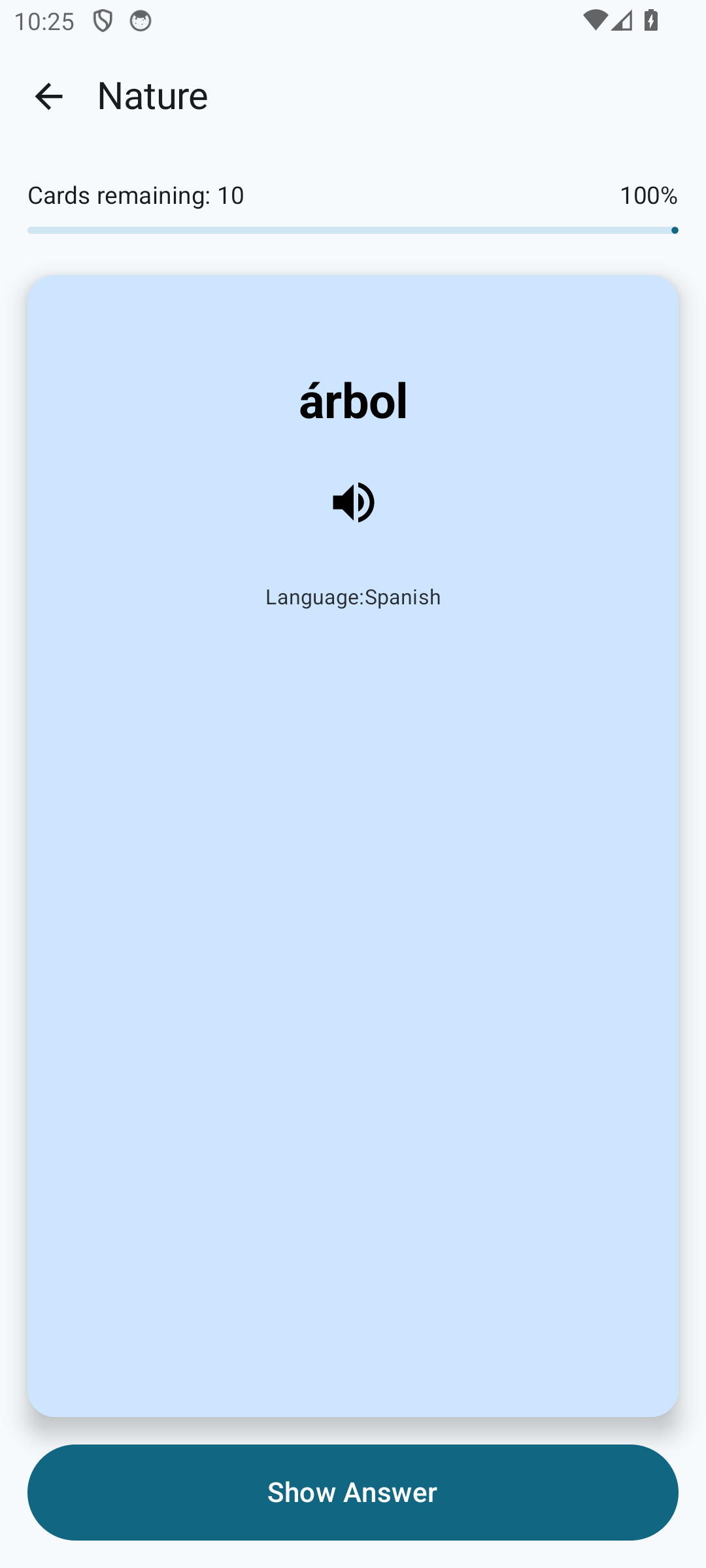
This is the main mode for memorizing cards. Whalik shows the card front-side-up. You try to recall the translation, then open the back side — there you see the translation, the usage example and notes (often a short definition of the meaning, plus grammatical details, synonyms, and usage nuances). After that, you tap "Show Answer" and rate how easily you recalled it with one of four buttons:
- Again — you couldn't recall it.
- Hard — recalled with effort.
- Good — recalled confidently.
- Easy — you know it perfectly.
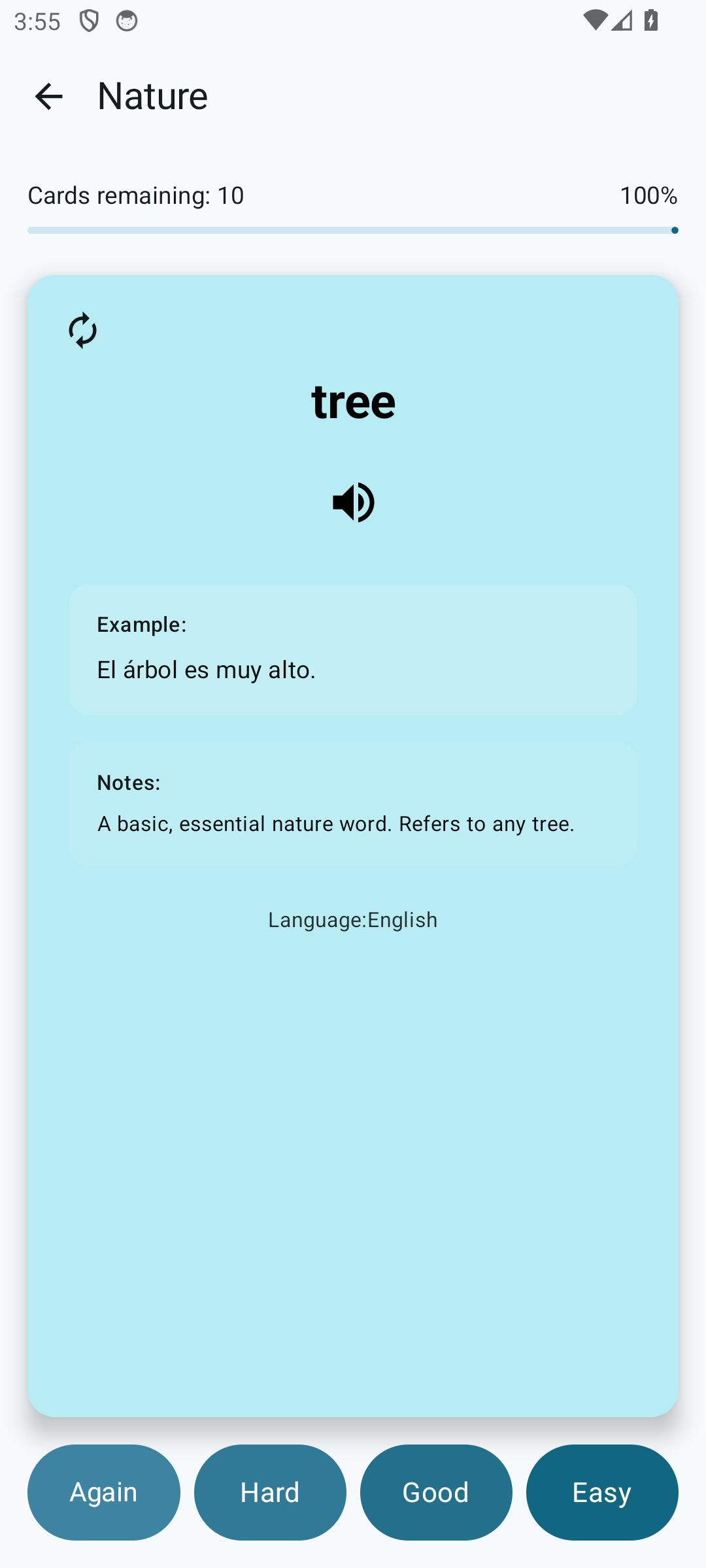
Based on these ratings, the spaced repetition algorithm calculates when to show the card next — from a few minutes (for ones just answered wrong) to several months (for well-learned ones).
For more details, see "How to study effectively".
Find your mode
Download Whalik and try all three ways of working with cards.