
Audio
Can I listen to cards with the device screen turned off? No. 26
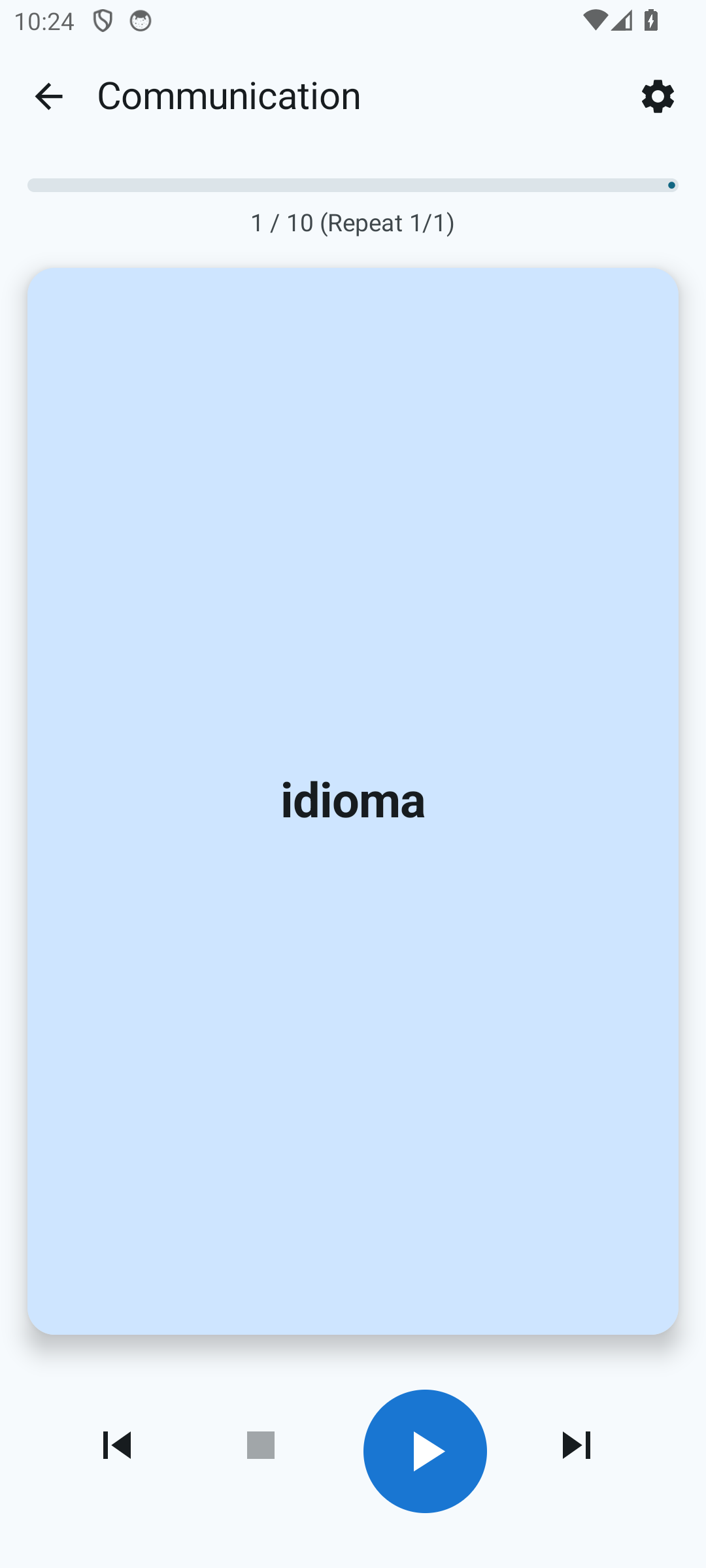
Yes. Audio playback mode keeps running when the screen is locked and when you switch to another app. It’s full background media playback:
- A mini-player appears in the notification shade: play/pause, skip to the next or previous card, and the title of the current card.
- Bluetooth headset buttons work — the app accepts standard media control commands (pause/play, skip to the next or previous card). Which buttons and gestures trigger them depends on your specific headset model.
- The lock screen also shows media controls — just like it does for music or podcasts.
Tip.
In the audio settings you can increase the pause between cards —
this gives you more time to repeat the word out loud before you
hear the next one.
Can I have cards narrated first in the native language, and then in the learning language? No. 27
Yes. By default, Whalik first speaks the front side (the word in the learning language), then the back (the translation in the native language). You can change this order:
- Open the audio playback screen in any deck.
- Tap the settings button on the screen.
- Disable the “Start with the front” option. After this, Whalik will first speak the translation in the native language, and then the word in the learning language.
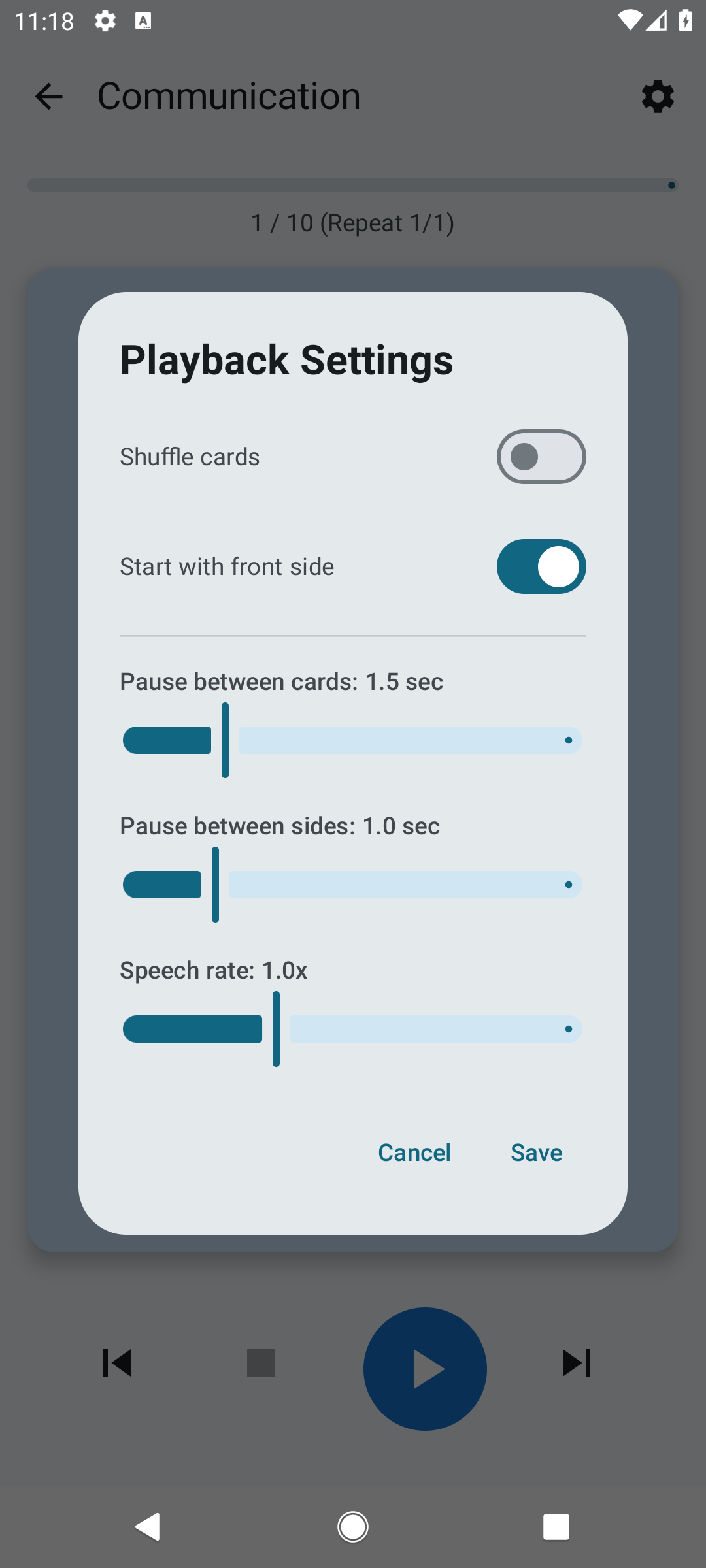
This order is handy for a “reverse” exercise — hearing the meaning and trying to recall the right word before it is spoken.
For more details, see the “Audio” section of the guide.
Learn by ear
Audio mode works offline and in the background — perfect for walks and commutes.