
Cards
How do I delete specific cards? No. 16
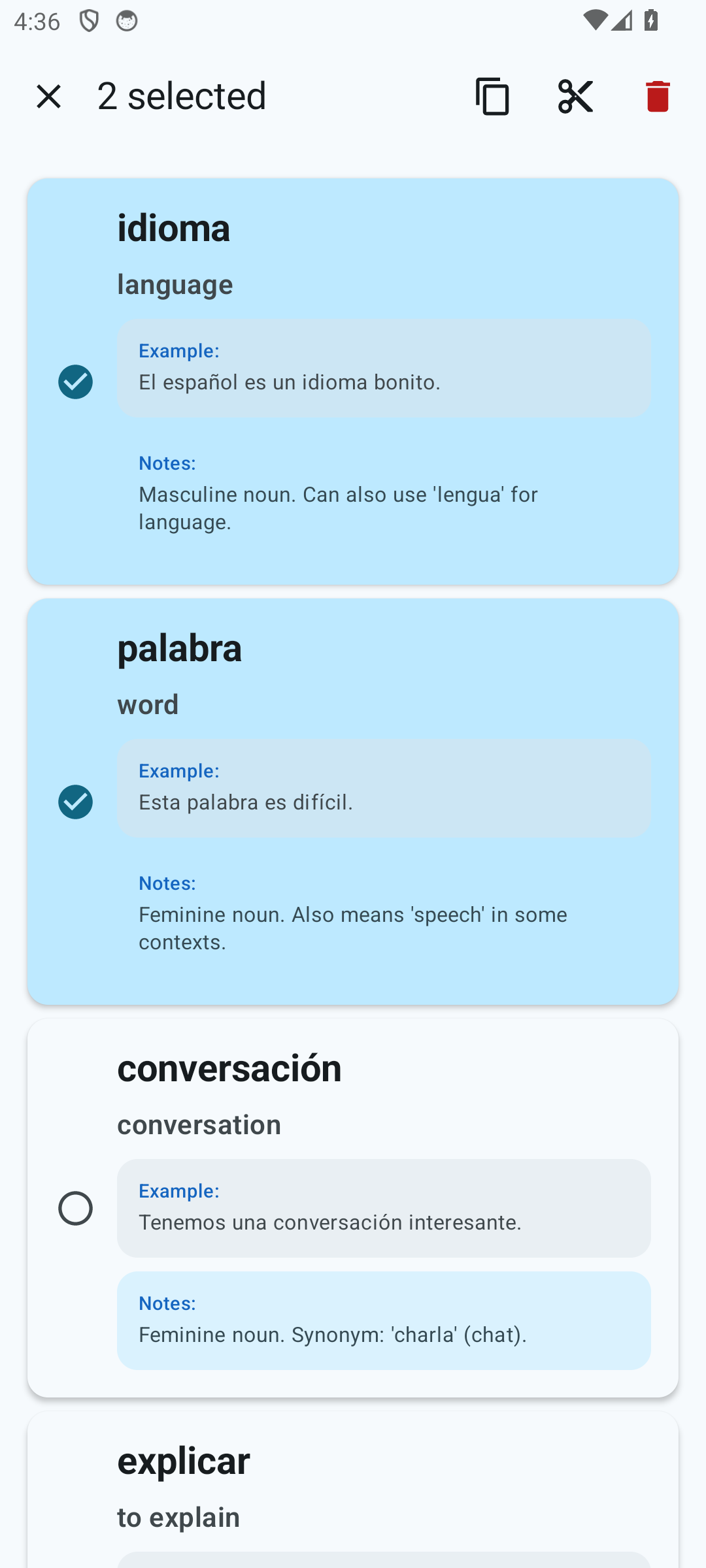
- Open the deck you need.
- Long-press one of the cards to enter selection mode.
- Mark all the cards you want to delete.
- In the top bar, tap “Delete” and confirm the action.
Important.
Deleting cards is irreversible on this device. If the cards were
created via AI generation, you can generate them again, but their
learning progress will start from scratch.
How do I move some cards to another deck? No. 17
Moving is done with the “Cut — Paste” pair:
- Open the source deck. Long-press the card you need and mark all the ones you want to move.
- Tap “Cut” in the top bar. The cards will disappear from the source deck and go into the internal clipboard.
- Open the destination deck. A “Paste” button will appear in the top bar — tap it. The cards will be added to this deck.
An alternative is to copy the cards into the destination deck.
How do I copy some cards to another deck? No. 18
Copying works the same as moving, but with the “Copy” button:
- Open the source deck and long-press to select the cards you need.
- In the top bar, tap “Copy”.
- Go to the destination deck and tap “Paste”.
Unlike “Cut”, the cards in the source deck are not deleted — they appear both there and in the destination deck.
Reorganize your decks
Whalik offers flexible card management — arrange your decks however suits you best.