
AI card generation
How do I generate a deck of cards on a chosen topic? No. 2
On the home screen (or on a deck screen), the top bar has an AI generation button. Tapping it opens the topic-based generation dialog:
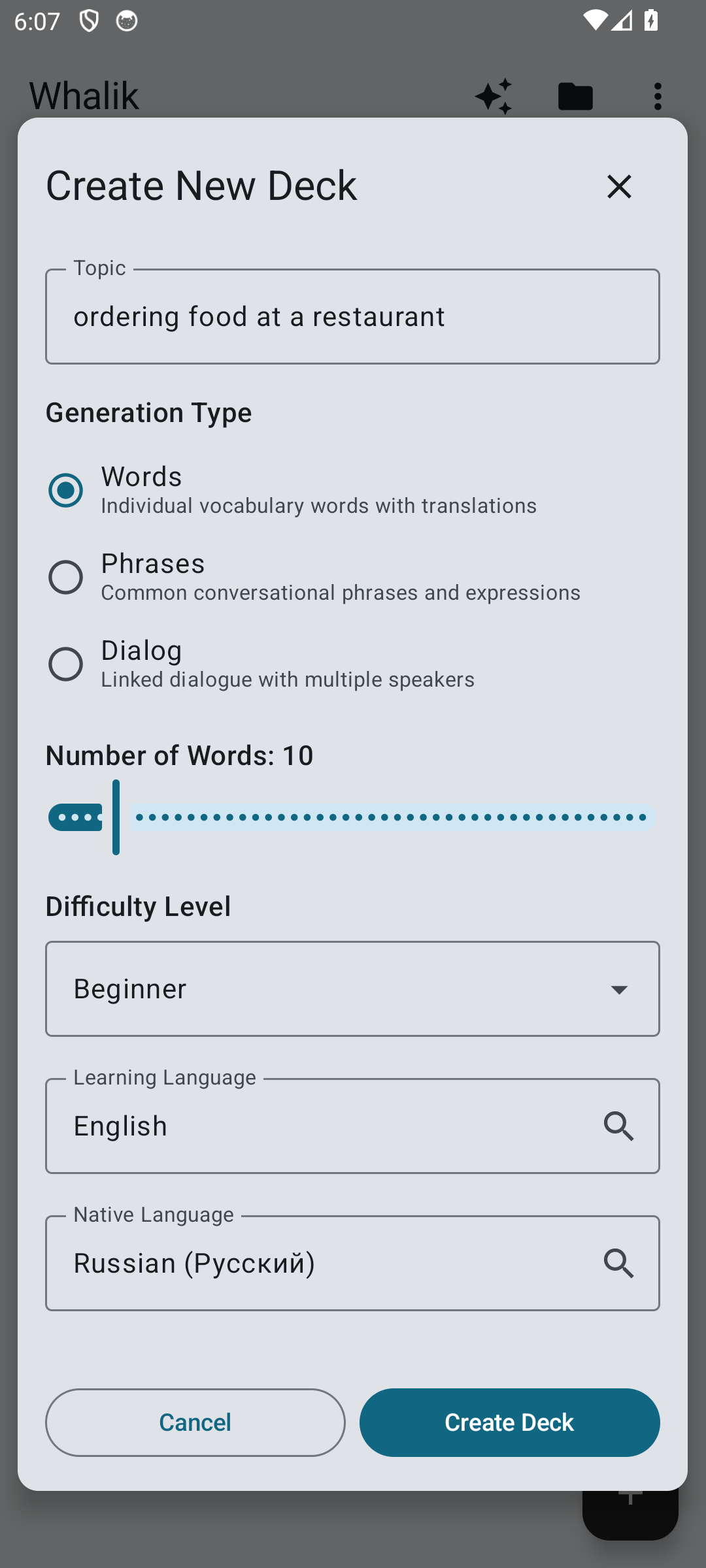
- Choose the “Words” method (default). “Phrases” and “Dialogue” are also available — see the details.
- Set the languages: learning language and native language. Translations will be in the native language; the words and examples will be in the learning language.
- Enter the topic, for example “breakfast at a café” or “business correspondence”. The more specific the topic, the more focused the deck.
- Set the number of cards (we recommend about 20) and the difficulty level (from beginner to expert).
- Tap “Generate”. The app assembles the deck for you — with cards, examples and translations — so you can start learning right away.
For more details, see “AI generation”.
How do I generate cards for specific words or phrases? No. 3
When you want to create cards for specific words or phrases (for example, “cat, dog, cow” or a list of new words you came across somewhere during the day) — use the “Custom Words” dialog.
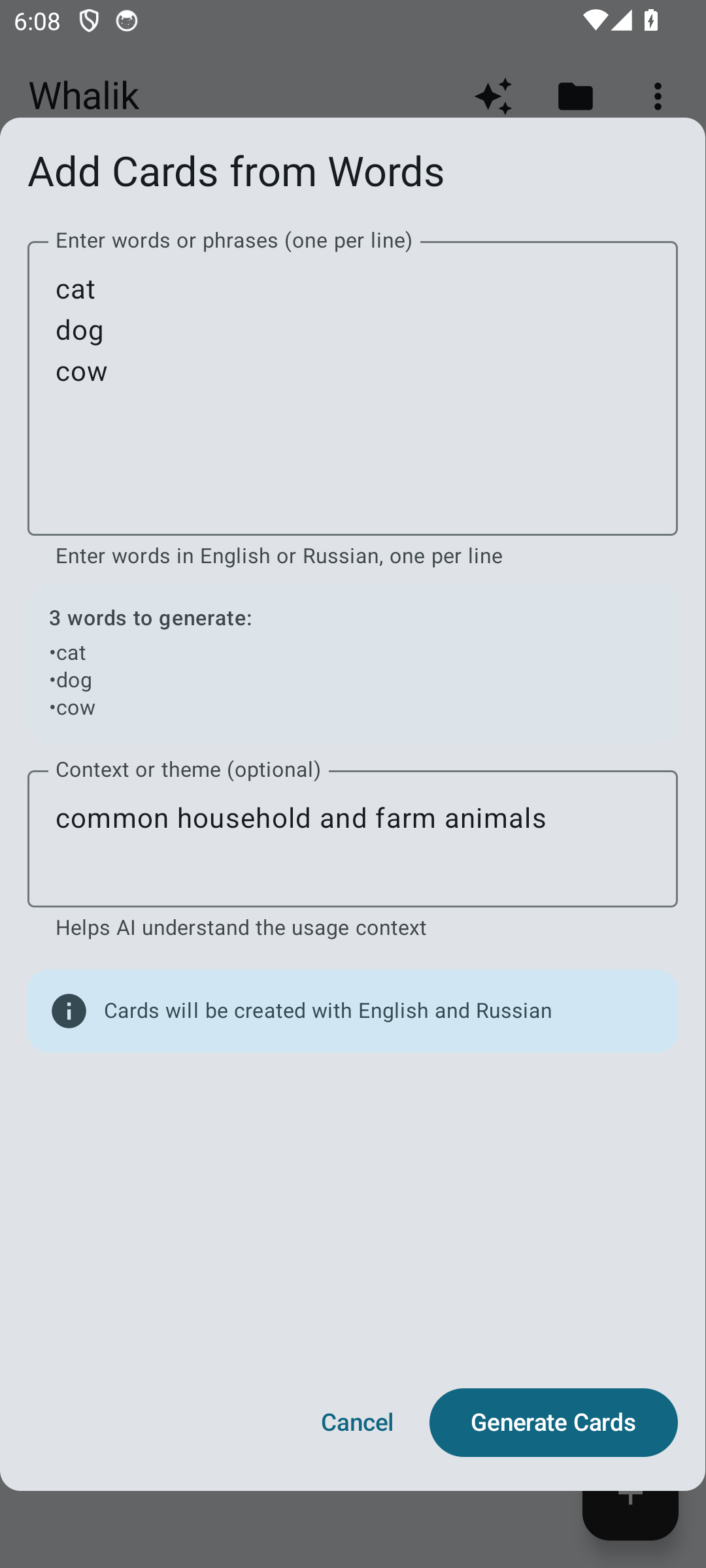
The “Custom Words” dialog only works inside an existing deck. The usual workflow is:
- On the home screen, tap the floating action button in the bottom-right corner — the “Create deck” dialog will open. Enter a name (for example, “Textbook vocabulary, lesson 3”), optionally a description, and choose the learning and native languages. Tap “Create” — you get an empty deck.
- Open that deck and tap the floating action button again — the “Custom Words” dialog will open.
- Enter the words or phrases line by line, one per line. You can enter them in either the learning or the native language — the translation will be produced in the appropriate direction.
- Optionally fill in the “Context” field — a short note about which specific meaning of these words to use. For example: “medical terminology” or “informal youth slang”.
- Confirm the generation. AI will add a translation, a usage example and, if needed, a note to each word.
Depending on where you are, the same floating action button either creates a new deck (on the deck list) or opens the “Custom Words” dialog (inside a deck).
You can also add custom words to an existing deck — for example, one you previously generated on a chosen topic. In that case the deck-creation step is skipped: just open the deck you need and tap .
Try AI generation
It’s Whalik’s most powerful feature — set a topic, and a ready-made deck will appear in your collection on its own.